![Untitled design (29)-1.png]](https://help.coastr.com/hs-fs/hubfs/Untitled%20design%20(29)-1.png?height=40&name=Untitled%20design%20(29)-1.png)
Pre-requisite: You're using a tracker purchased from Coastr for tracking your fleet.
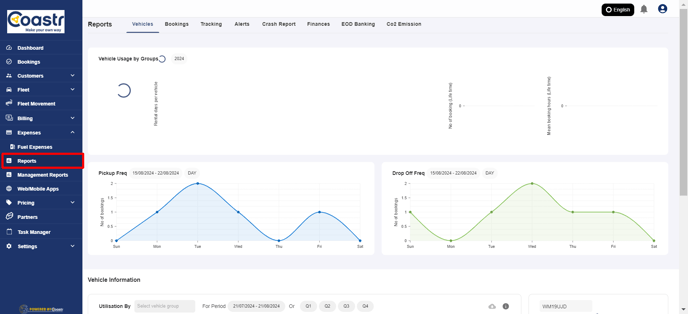
Step 1: Go to Reports in the left-hand navigation on the Car and Van Management Software.
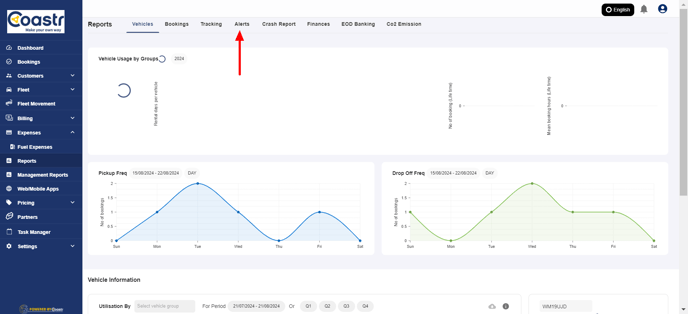
Step 2: Click on the Alerts tab.
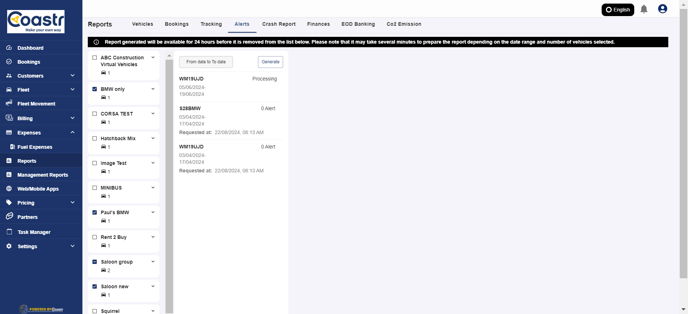
Step 3: Select one or more vehicles from the vehicle groups on the left
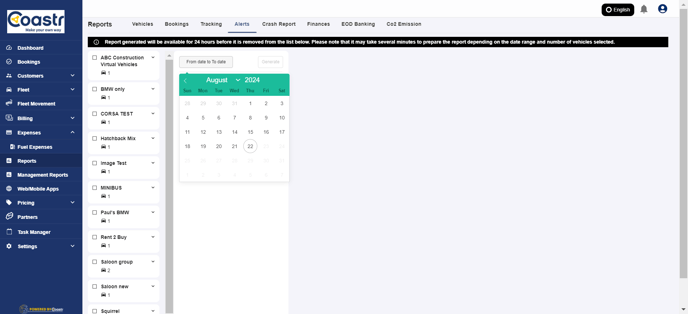
Step 4: Select a date range for the DTC Alerts
Step 5: You'll then see the available DTC alerts data for the vehicle below
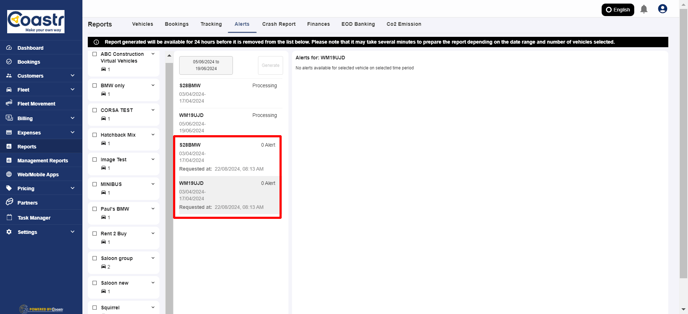
Step 6: This will contain the vehicle reg number, alert type, alert code, description, date & time, and the address (location) of the vehicle when this DTC alert was triggered/registered
Step 7: If you'd like to download this data, then click on the Download button next to the date range
Step 9: A CSV file with all the above data will be downloaded to your system which will contain all the information in detail for the selected vehicle and the date/time period
If you've any questions or issues, please email support@coastr.com. We're happy to help!
If you found this article useful then please vote below, it helps us massively. Thank you!