![Untitled design (29)-1.png]](https://help.coastr.com/hs-fs/hubfs/Untitled%20design%20(29)-1.png?height=40&name=Untitled%20design%20(29)-1.png)
To set this up in the settings, follow the below given steps
Step 1: Go to settings, and select organisation on the Car and Van Rental Software.
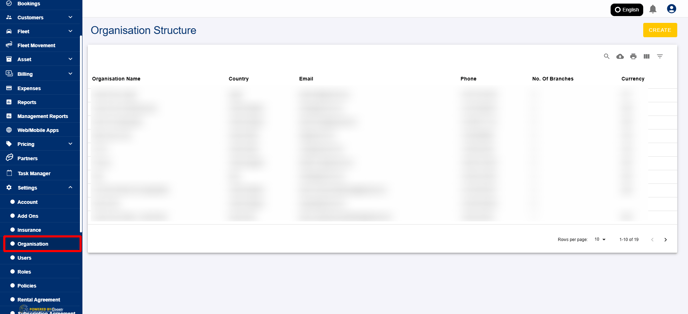
Step 2: Select the organisation you wish to set this up.
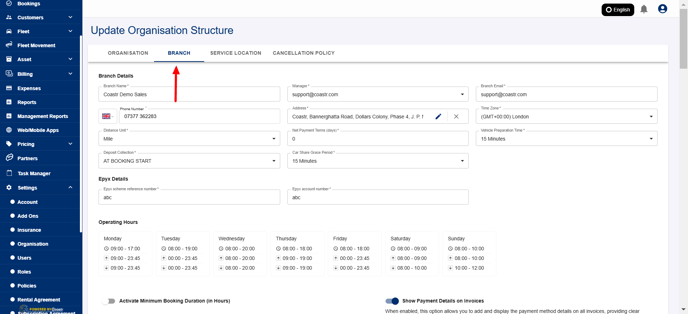
Step 3: Click on the Branch Tab.
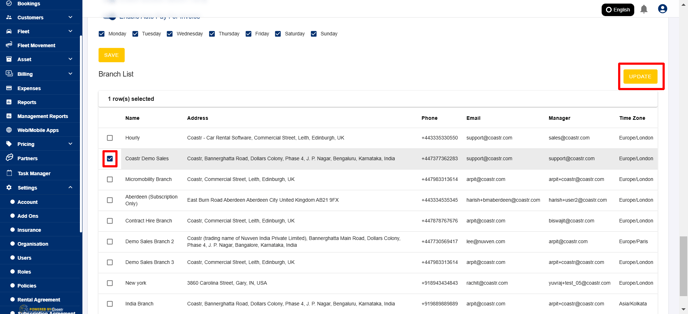
Step 4: Scroll down to find the list of branches under the selected organisation. Select the desired branch and click update, to populate the branch details.
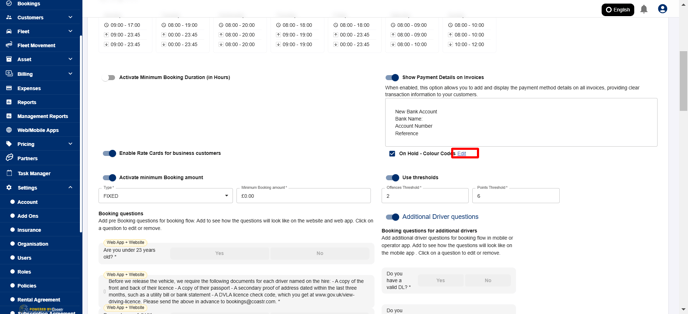
Step 5: Scroll up to find the option "On Hold - Colour Codes".
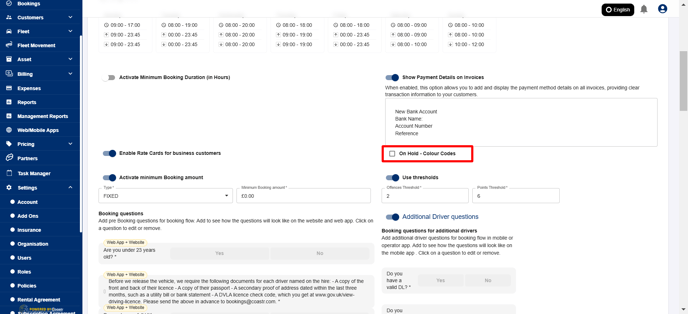
Step 6: Enable this option. Once it is enabled, an edit option appears. Click on "Edit"
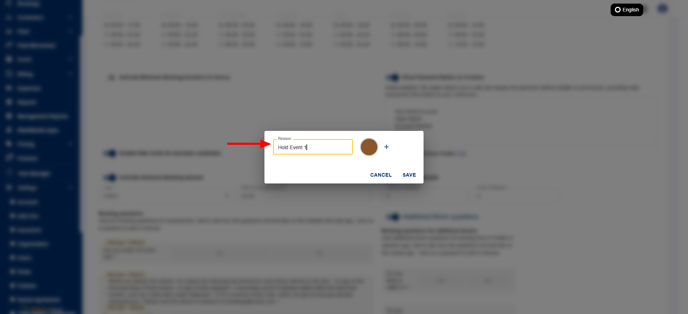
Step 7: Enter the reason for hold, in the text box given. Also, select the colour in which you would like the event to appear on the vehicle scheduler.
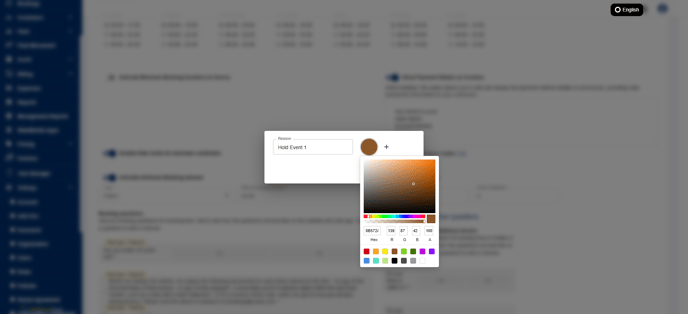
Step 8: If you would like to add multiple reasons, click on "Add" Icon. Repeat the above step to add additional colour codes.
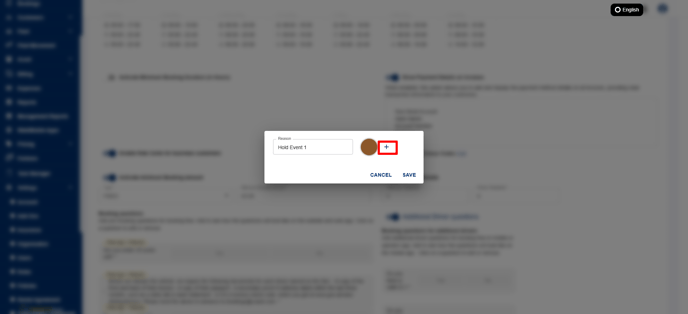
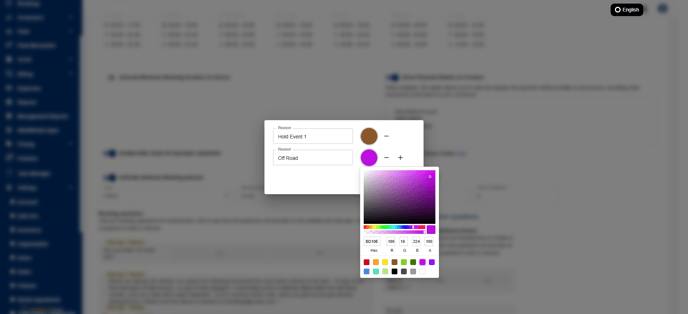
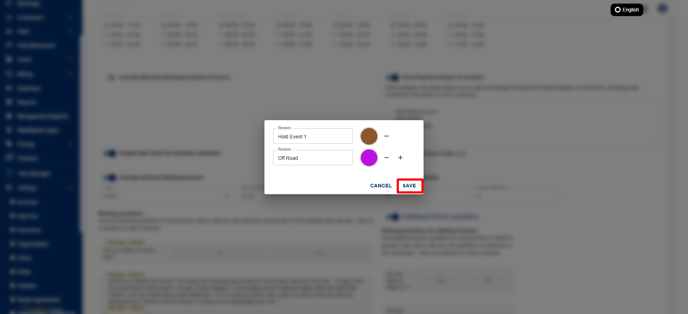
Step 9: Once you have added all the colour codes, click on Save.
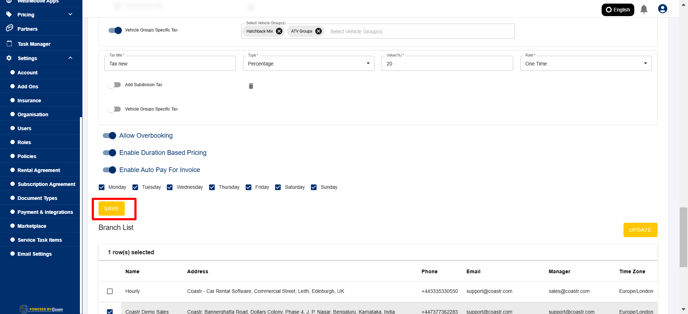
Step 10: Scroll down to click "Save" to update the branch settings.
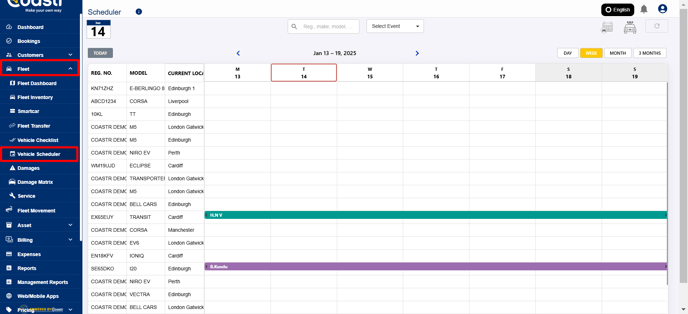
Step 11: To hold the vehicle with the created reason/colour codes, go to vehicle scheduler, under fleet on the left navigation pain.
Step 12: Click on the calendar, and click on Hold vehicle Option.
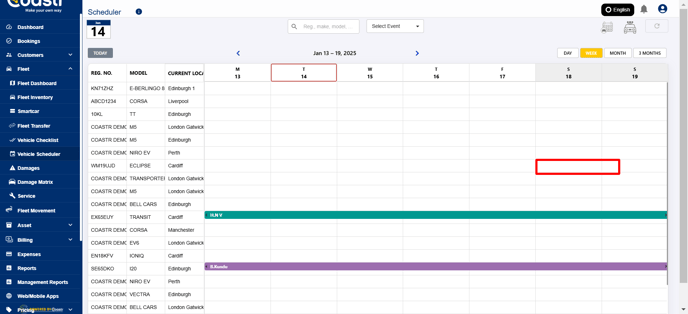
Step 13: Enter the date/time for hold, and select the reason for holding the vehicle.
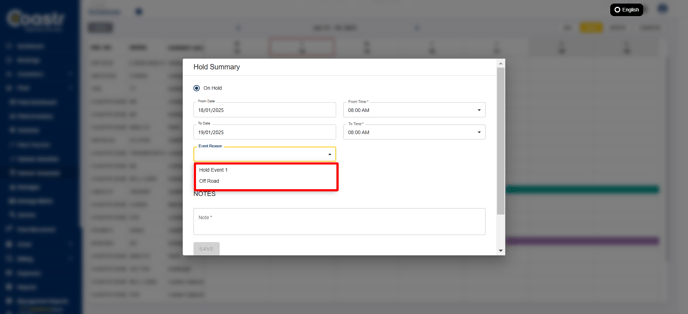
Step 14: Enter the notes, and click save to confirm vehicle hold.
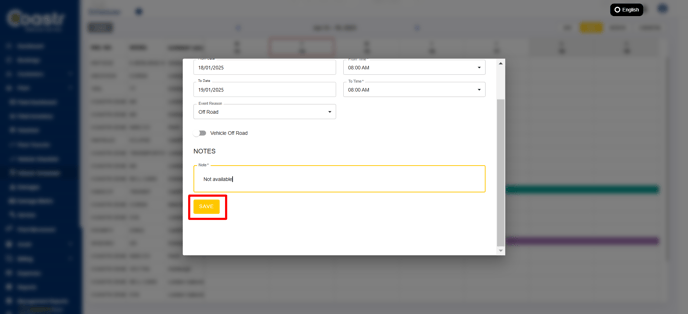
That's it! You have successfully held your vehicle, and the created color codes have been applied.
If you've any questions or issues, please email support@coastr.com. We're happy to help!
If you found this article useful then please vote below, it helps us massively. Thank you!