![Untitled design (29)-1.png]](https://help.coastr.com/hs-fs/hubfs/Untitled%20design%20(29)-1.png?height=40&name=Untitled%20design%20(29)-1.png)
Step 1: Click on Settings and select 'Organisation'
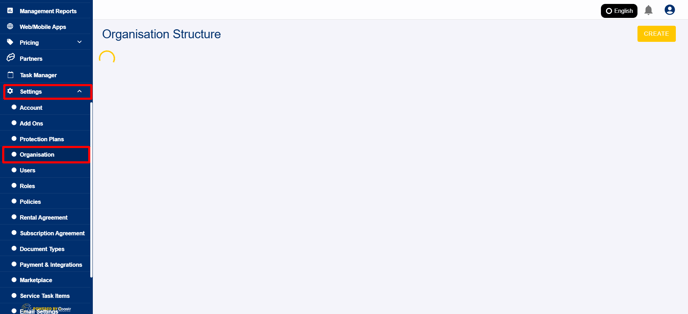
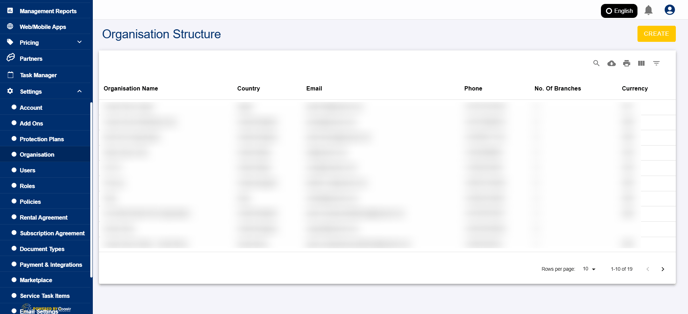
Step 2: Select the organisation to update the details.
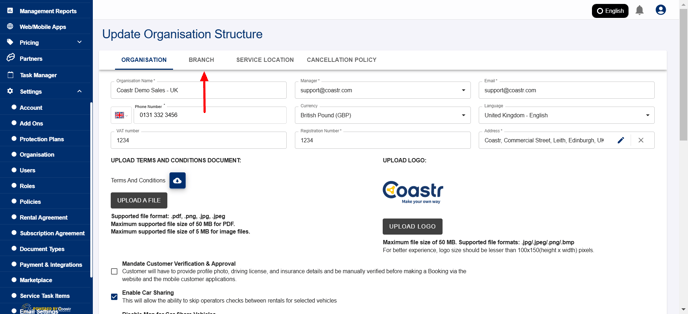
Step 3: Click on Branch tab.
Step 4: Scroll down to find the list of branches.
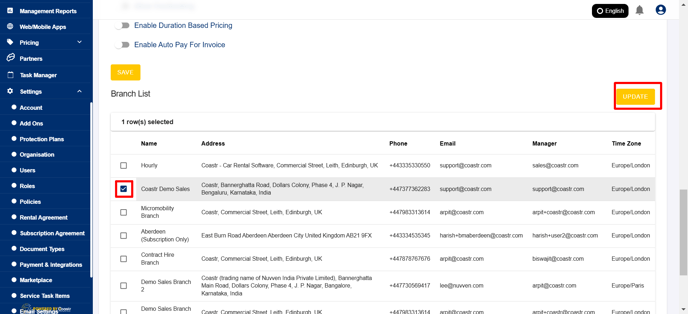
Step 5: Select the desired branch and click 'Update'.
Step 6: Scroll up to find "Show details on 'Quote'
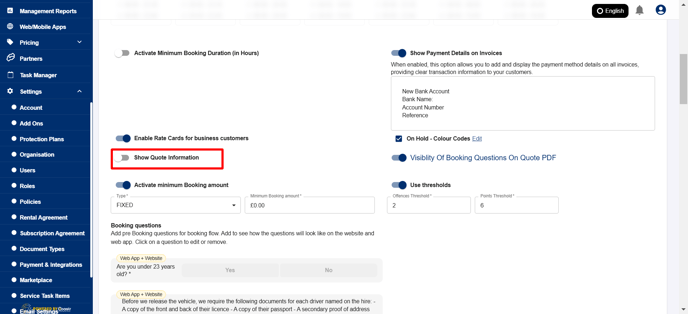
Step 7: Enable the toggle to enter details in the text box.
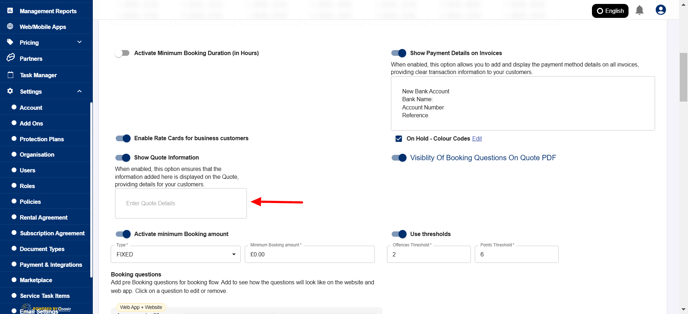
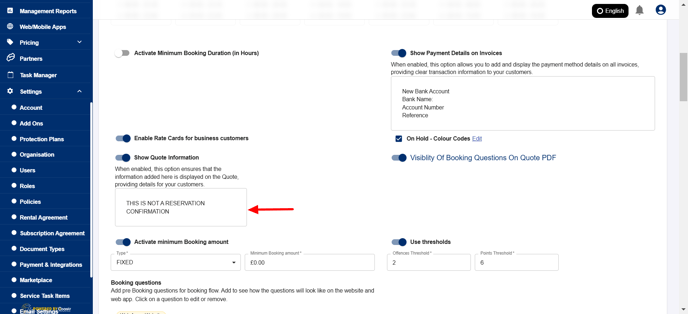
Step 8: Enter the desired text in the text box.
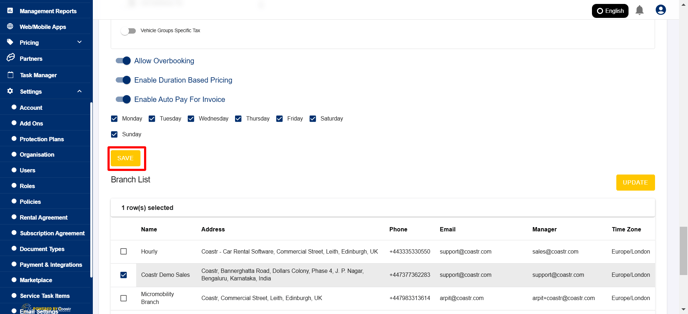
Step 9: Click on 'Save' to save the branch details.
When a quote is sent over to the customer, this text will be visible in the pdf file.
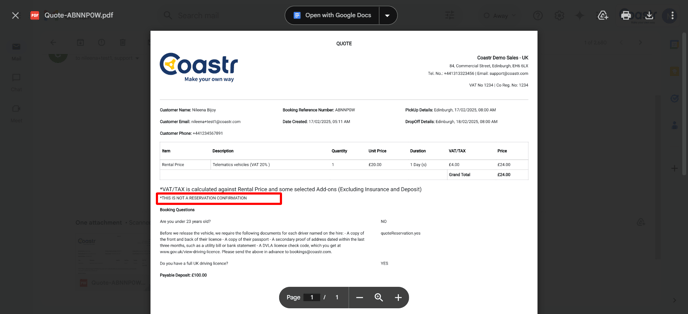
That's it! You have now successfully entered text to quote.
If you've any questions or issues, please email support@coastr.com. We're happy to help!
If you found this article useful then please vote below, it helps us massively. Thank you!