![Untitled design (29)-1.png]](https://help.coastr.com/hs-fs/hubfs/Untitled%20design%20(29)-1.png?height=40&name=Untitled%20design%20(29)-1.png)
Step 1: Go to settings and select 'Organisation'.
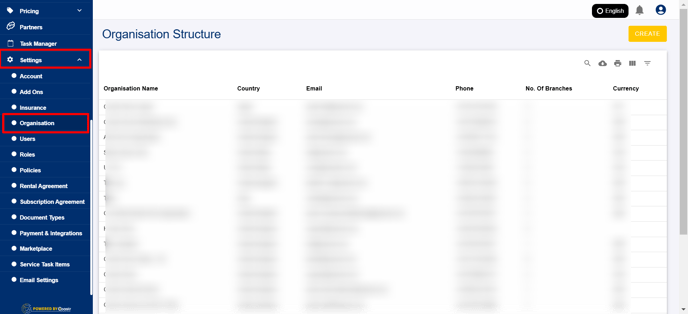
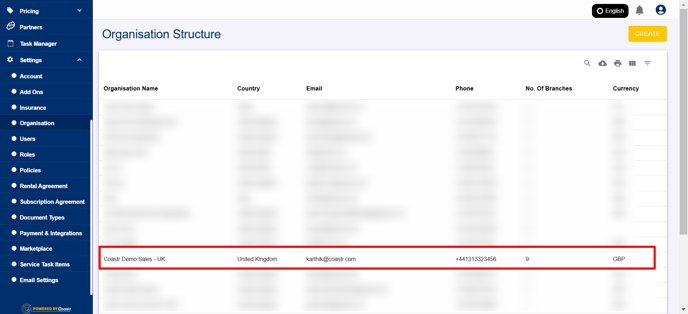
Step 2: Select the desired organisation.
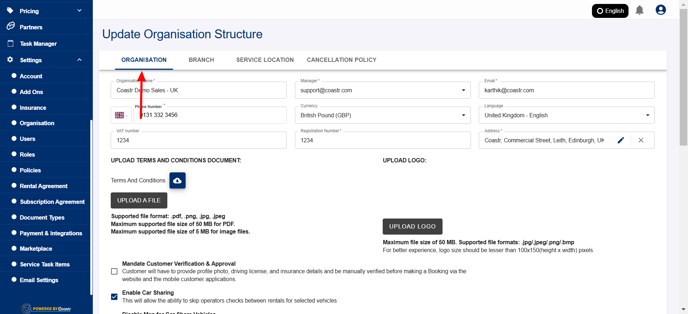
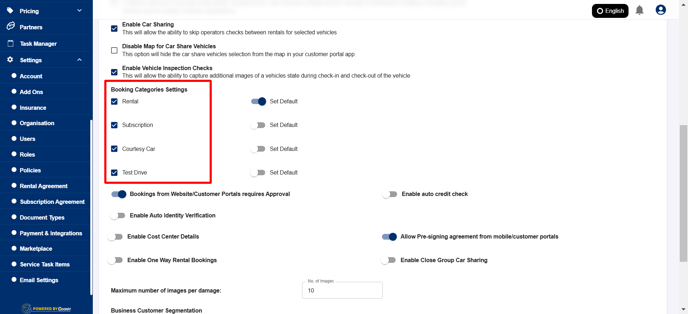
Step 3: On the organisation tab, scroll down to find the booking types. You can see that Rental is turned on by default.
Step 4: You now have option to select the following booking type
- Subscription
- Test Drive
- Courtesy Booking
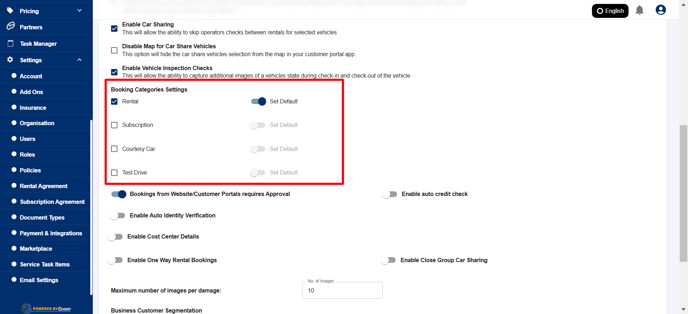
Step 5: Select the desired booking type, if you would like to enable any of the mentioned booking type
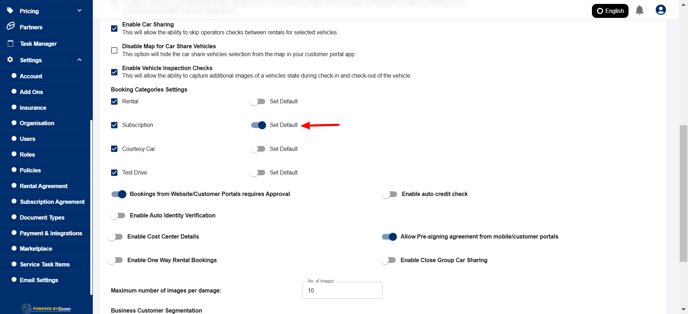
Step 6: You also have an option 'Set Default' if you want to set this booking type as your default model.
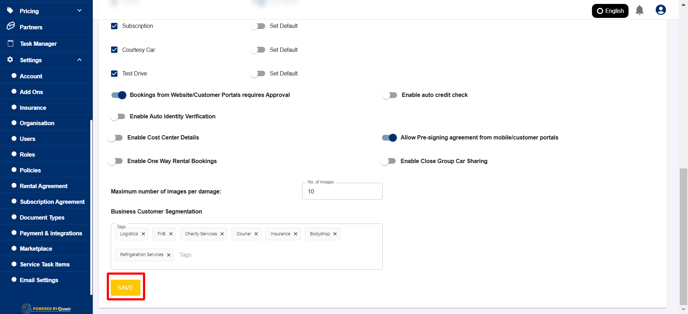
Step 7: Once this is selected, click on Save to update settings.
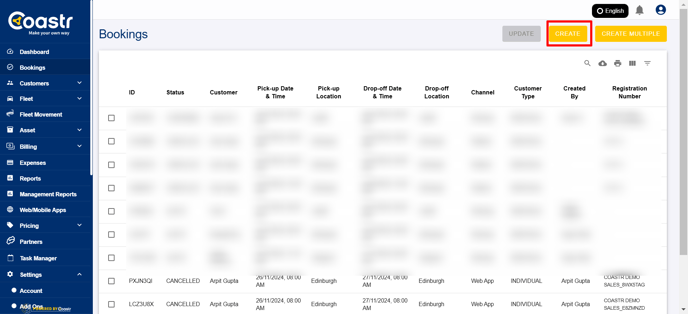
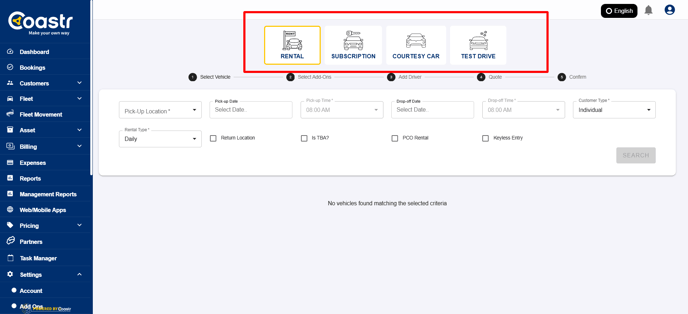
That's it! You have now successfully enabled the desired booking type. If you go to the bookings page now, and try creating a booking, you can have all the selected booking categories available to select.
If you've any questions or issues, please email support@coastr.com. We're happy to help!
If you found this article useful then please vote below, it helps us massively. Thank you!