![Untitled design (29)-1.png]](https://help.coastr.com/hs-fs/hubfs/Untitled%20design%20(29)-1.png?height=40&name=Untitled%20design%20(29)-1.png)
You can now add the following vehicle expenses for your vehicle.
1. Fuel Expenses
2. Maintenance & Valet Expenses
3. Fine
4. Insurance Expenses
Follow the below steps to record expense against a vehicle.
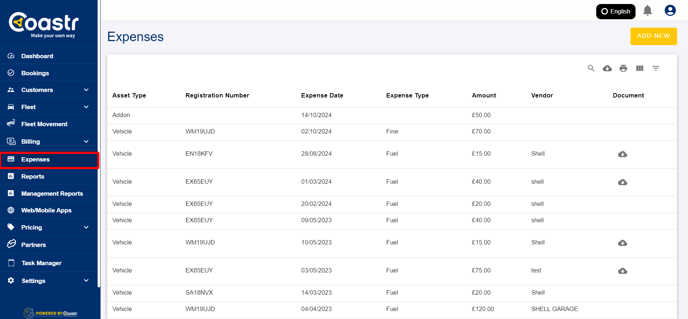
Step 1: Go to the ‘Expenses’ Tab on the left hand navigation pane on the Car and Van Rental Software.
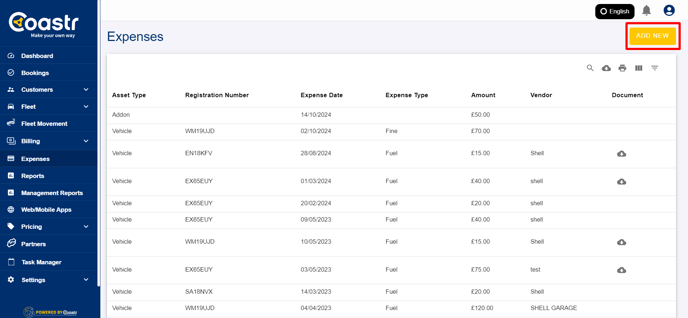
Step 2: Click on the ‘Add New’ option on the top left.
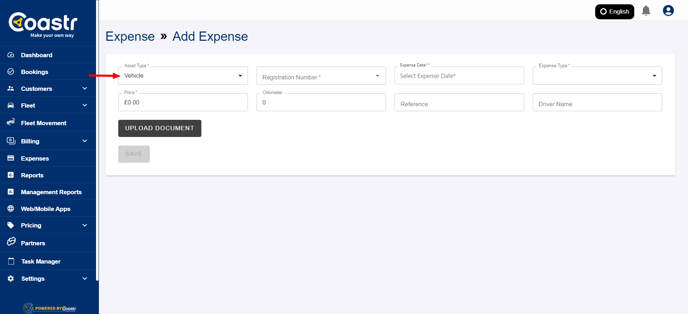
Step 3: Enter the asset type as ‘Vehicle’ .
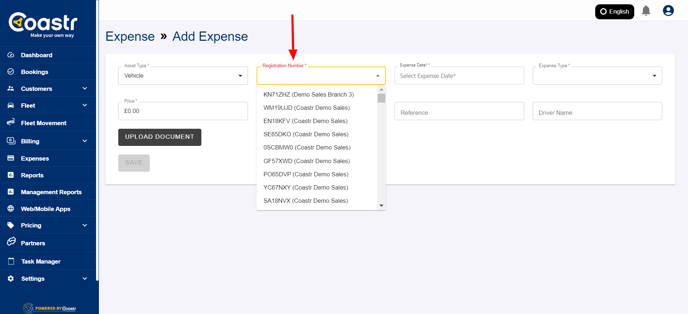
Step 4: Select or search the registration number of the vehicle.
Step 5: Enter the Date of the expense.
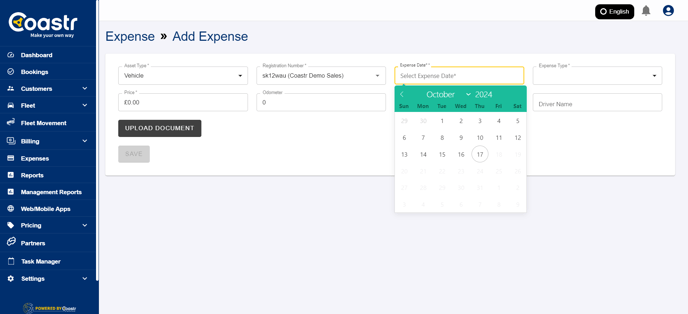
Step 6: On the expense type, select the type from the list. (Fuel, Fine, Maintenance and Valet, Insurance or Other)
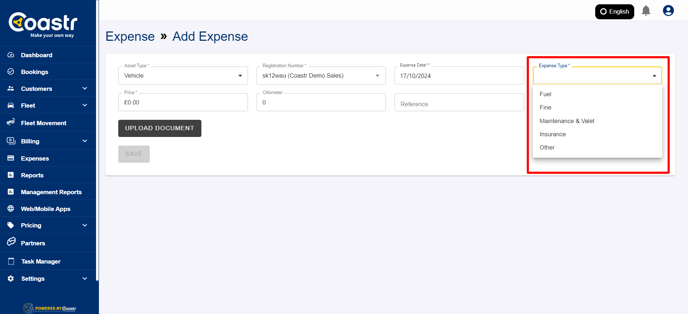
Step 7: Enter ‘Fuel’ as a type of expense.
Step 8: Enter the quantity, price, odometer reading, and vendor.
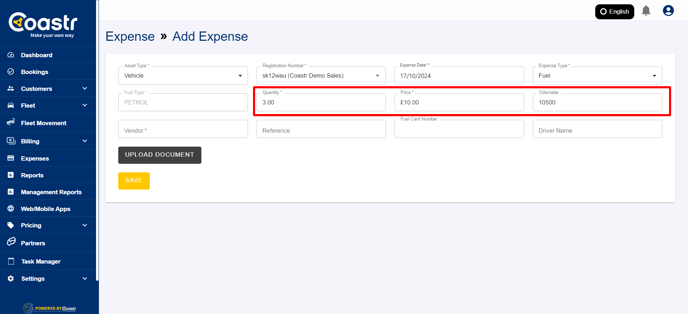
Step 9: You can also enter fuel card number, driver details for your reference. You could also upload a document for the expense.
Step 10: Click on Save to update the expense. The expense is successfully added against the vehicle.
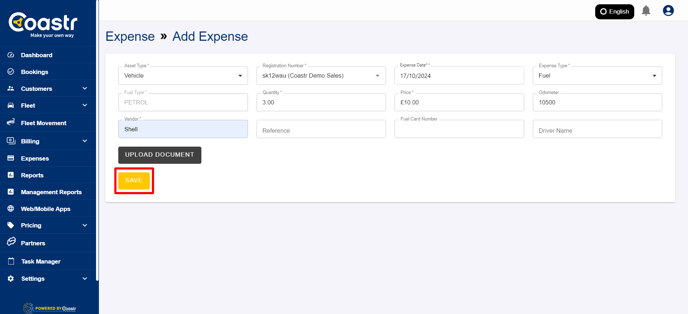
Step 11: To view the expense, you can go to the fleet inventory, and search for the vehicle.
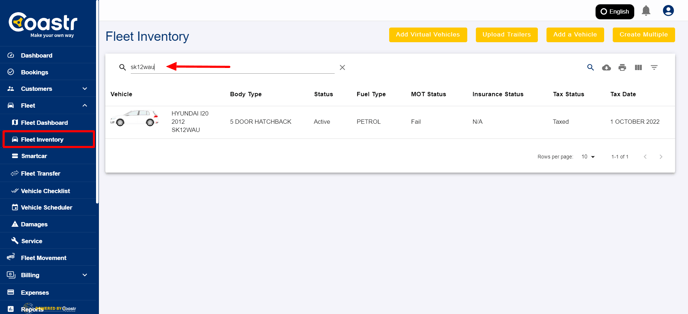
Step 12: Click on the ‘Expense History’ tab, to view all the expenses added on the vehicle.

Step 13: Similarly, you can enter expenses for Fine, Maintenance & Valet, Insurance, or any other expenses you would like to record.
That’s it! You have now successfully added vehicle expenses.
If you've any questions or issues, please email support@coastr.com. We're happy to help!
If you found this article useful then please vote below, it helps us massively. Thank you!