![Untitled design (29)-1.png]](https://help.coastr.com/hs-fs/hubfs/Untitled%20design%20(29)-1.png?height=40&name=Untitled%20design%20(29)-1.png)
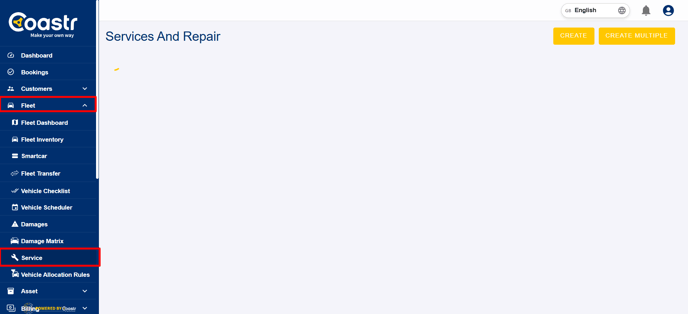
Step 1: Click on the Service Schedule from the Service section of Car and Van Rental Software. Make sure the service you open is either In-Progress or Completed, as only these statuses allow you to generate and link a sundry invoice to a customer booking.
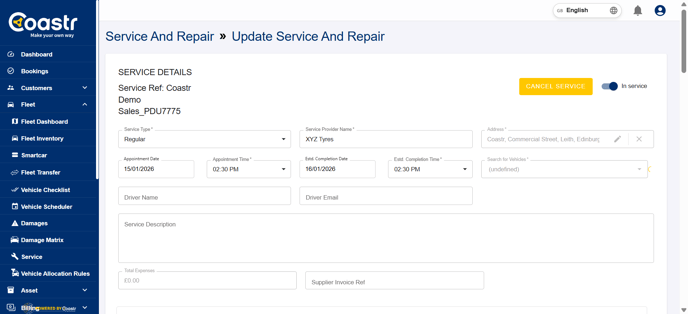
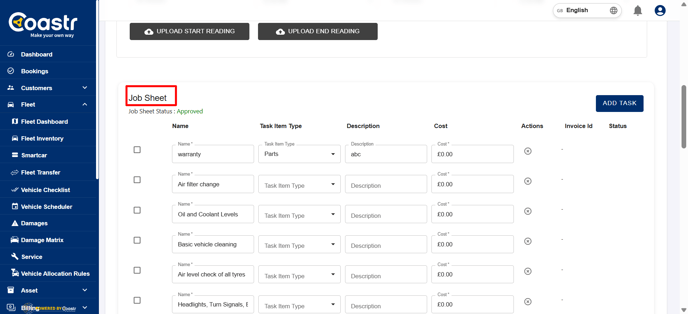
Step 2: Scroll down the page to locate the Job Sheet section. Add all the relevant items or service components that need to be included in the customer invoice. Once you have entered the details, make sure to save the job sheet to ensure all information is recorded accurately. If the job sheet is already saved, you can move to the next step.
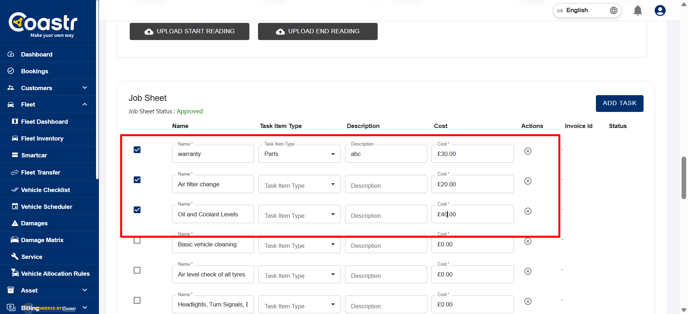
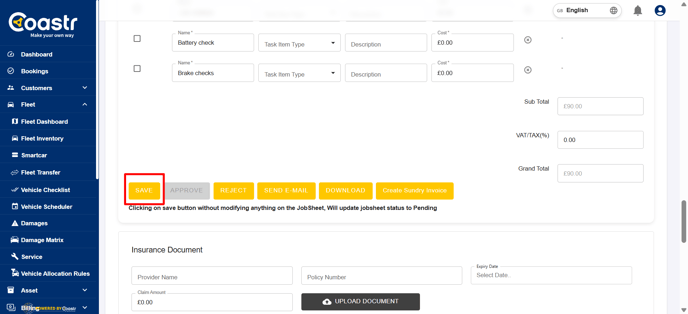
Step 3: From the job sheet, select the specific descriptions or items that you want to appear on the sundry invoice.
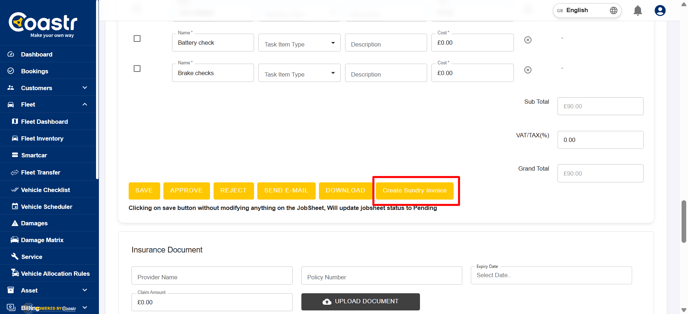
Step 4: After selecting the items, click the Create Sundry Invoice button.
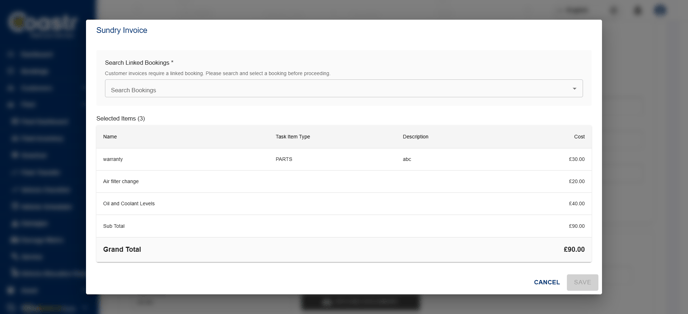
Step 5: A pop-up will appear asking for the booking reference number. Enter the booking reference of the live customer booking that you want this sundry invoice to be linked to.
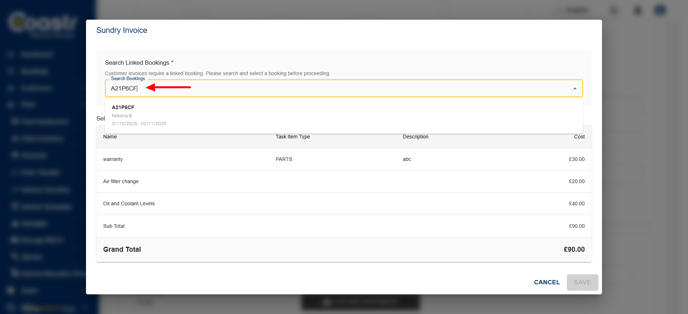
Step 6: Once you enter the booking reference, click Save
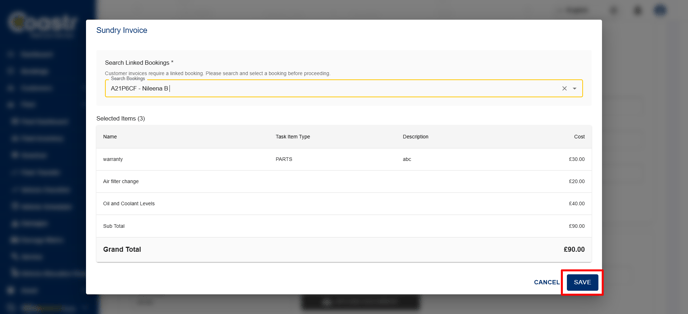
Step 7: The selected items will now be generated as a sundry invoice linked to the chosen customer booking.
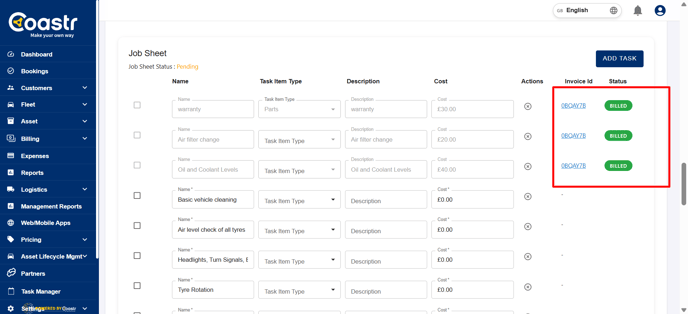
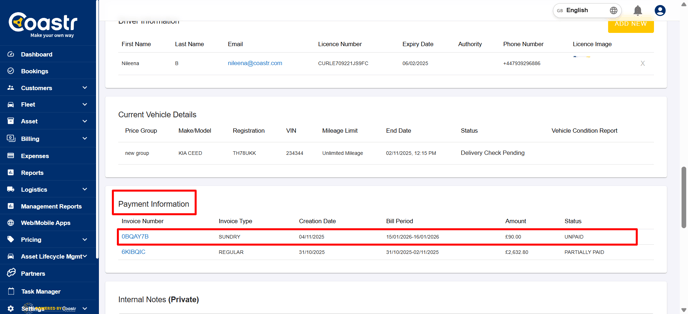
That’s it! You’ve successfully connected a service job to an active customer booking, ensuring all associated costs are properly invoiced and tracked.