![Untitled design (29)-1.png]](https://help.coastr.com/hs-fs/hubfs/Untitled%20design%20(29)-1.png?height=40&name=Untitled%20design%20(29)-1.png)
Step 1: Click on settings and select the ‘Agreements’ option on the Car and Van Rental Software.
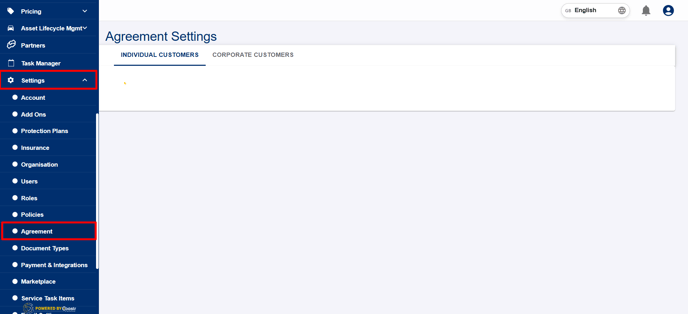
Step 2:Choose the type of customer for which you want to create a custom Subscription Agreement. You can select either Individual Customer (retail) or Corporate Customer (business).
Click on the organisation dropdown to choose the Organisation.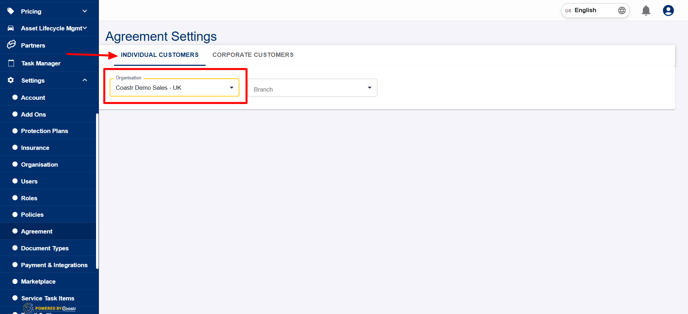
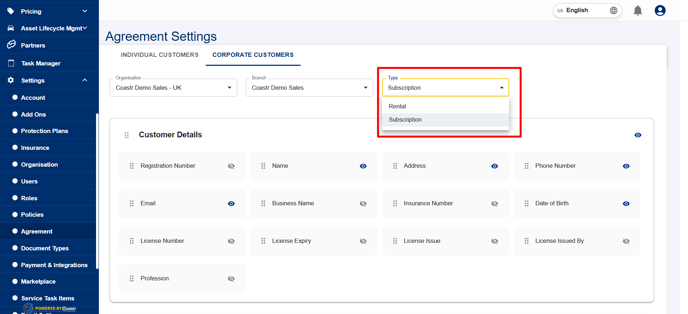
Step 3: Now, on each section, if you would like to change the field name, click on the field name you wish to change. Enter the new name for the label. Click on the edit icon on the label name to change the name
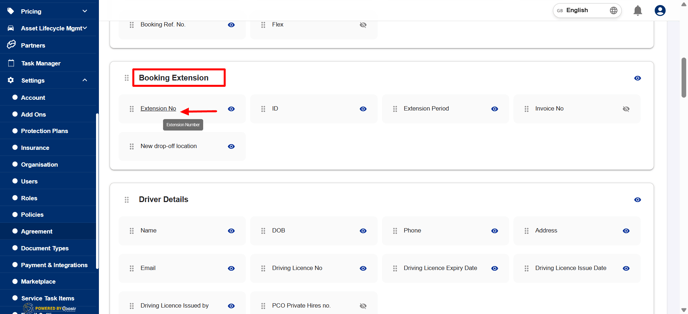
Step 7: Once the name is given, click on the tick to update the changes on the section.
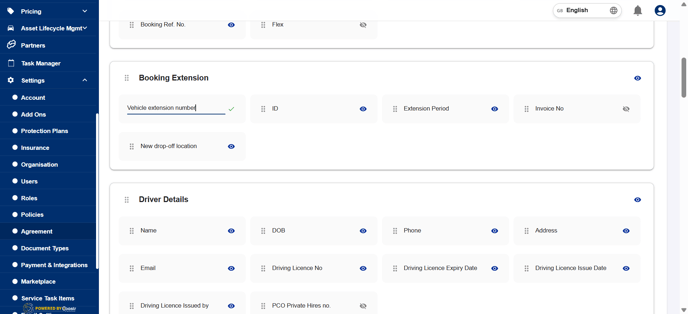
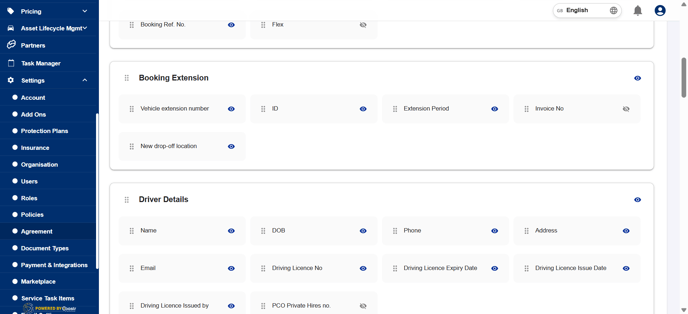
Step 8: Similarly, you can change the label name under other sections as well.
Step 9: Scroll down and click on the ‘Save’ button to save the changes
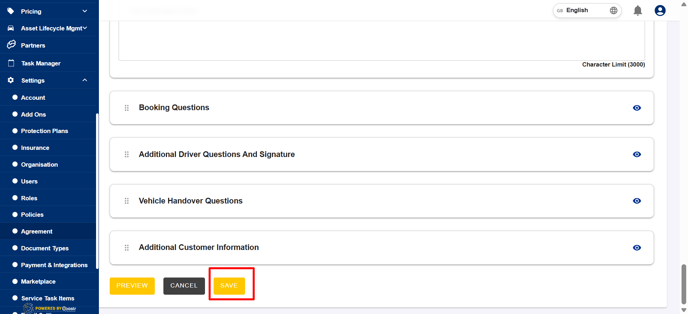
Step 10: To edit the label name of the Subscription agreement for business customers, click on the ‘Business Customers’ tab and repeat the above steps.
You could also use the preview button to view the changes.
That’s it. You have successfully changed or updated the field name in the Subscription Agreement for individual and business customers.
If you've any questions or issues, please email support@coastr.com. We're happy to help!
If you found this article useful then please vote below, it helps us massively. Thank you!