---
title: How to reassign the vehicle in the vehicle scheduler?
description: You can now reassign a vehicle to a booking using the vehicle scheduler.
---
[Skip to content](https://help.coastr.com/knowledge/how-to-reassign-the-vehicle-in-the-vehicle-scheduler#main-content)
English
Show submenu for translations
![Untitled design (29)-1.png\]](https://help.coastr.com/hs-fs/hubfs/Untitled%20design%20(29)-1.png?height=40&name=Untitled%20design%20(29)-1.png)
- [Menu](https://www.coastr.com/)
Open main navigation
Close main navigation
- [Menu](https://www.coastr.com/)
- English
Show submenu for translations
Welcome to the Coastr Help Centre!
- There are no suggestions because the search field is empty.
1. [Coastr Help Centre](https://help.coastr.com/knowledge?hsLang=en)
2. [How to guides](https://help.coastr.com/knowledge/how-to-guides?hsLang=en)
3. [Fleet](https://help.coastr.com/knowledge/how-to-guides?hsLang=en#fleet)
# How to reassign the vehicle in the vehicle scheduler?
## You can now reassign a vehicle to a booking using the vehicle scheduler.
If you need to reassign a vehicle to a confirmed booking, you can easily do so using the drag-and-drop feature in the Vehicle Scheduler. Please follow the steps below to complete the reassignment process:
Note: Only confirmed bookings can be reassigned using this method. You will not be able to drag and drop events that are in-progress or completed.
Step 1: Navigate to the Vehicle Scheduler located under the Fleet menu in the Car and Van Rental Software.
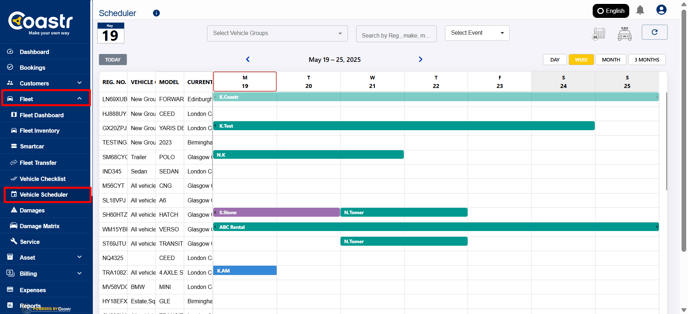
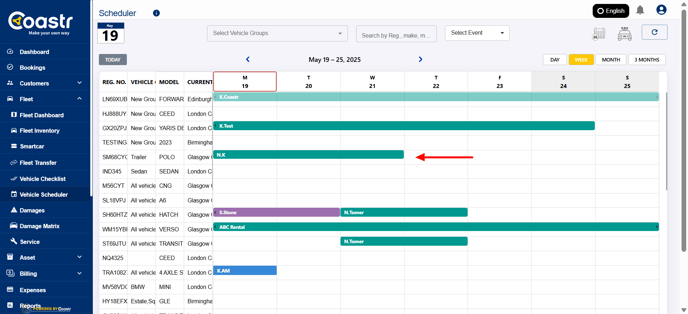
Step 2: Identify the confirmed booking for which you’d like to reassign a vehicle.
Step 3: Simply drag and drop the booking event to the new, desired vehicle listed in the scheduler.
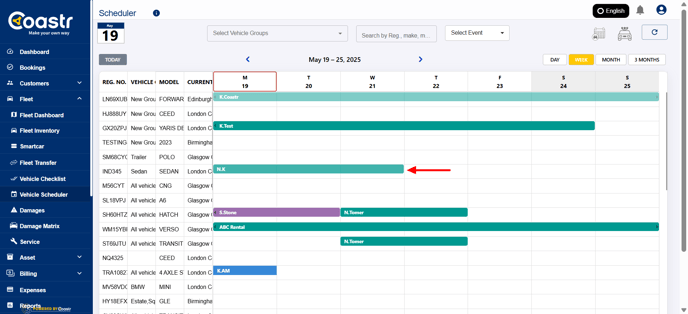
**Important**: Bookings can only be moved within the same date. The system does not allow reassignment to a future or past date.
Step 4: After dropping the event, select the appropriate vehicle group and click Confirm to complete the update.
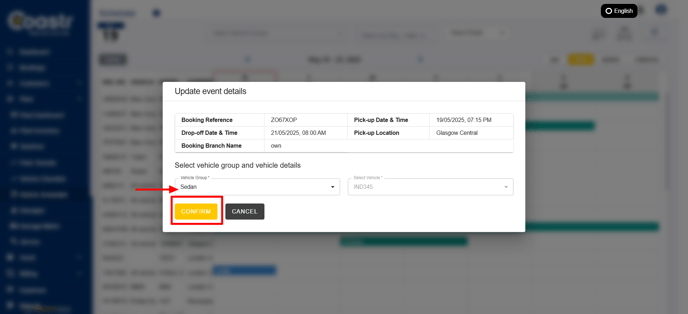
Once confirmed, the vehicle will be successfully reassigned, and the booking will reflect the change immediately.
That’s it! You've now successfully updated the event with a new vehicle. You can view the previous and current vehicle details in the booking management page.
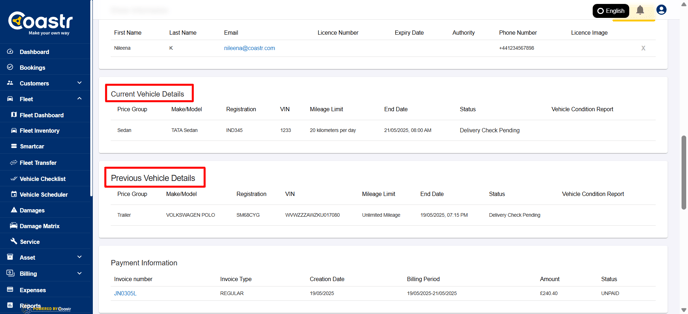
If you have any questions or encounter issues, feel free to contact us at support@coastr.com — we’re here to help!
If you found this article helpful, please vote below. Your feedback is greatly appreciated!
- [How to guides](https://help.coastr.com/knowledge/how-to-guides?hsLang=en#main-content)
- [Bookings](https://help.coastr.com/knowledge/how-to-guides?hsLang=en#bookings)
- [Customers](https://help.coastr.com/knowledge/how-to-guides?hsLang=en#customers)
- [Fleet](https://help.coastr.com/knowledge/how-to-guides?hsLang=en#fleet)
- [Telematics & Immobilsation](https://help.coastr.com/knowledge/how-to-guides?hsLang=en#telematics-immobilsation)
- [Vehicle Scheduler](https://help.coastr.com/knowledge/how-to-guides?hsLang=en#vehicle-scheduler)
- [Damages, Service and Repairs](https://help.coastr.com/knowledge/how-to-guides?hsLang=en#damages-service-and-repairs)
- [Billing and Invoices](https://help.coastr.com/knowledge/how-to-guides?hsLang=en#billing-and-invoices)
- [Reports](https://help.coastr.com/knowledge/how-to-guides?hsLang=en#reports)
- [Websites](https://help.coastr.com/knowledge/how-to-guides?hsLang=en#websites)
- [Settings](https://help.coastr.com/knowledge/how-to-guides?hsLang=en#settings)
- [Coastr for Partners Mobile App](https://help.coastr.com/knowledge/how-to-guides?hsLang=en#coastr-for-partners-mobile-app)
- [Troubleshooting](https://help.coastr.com/knowledge/how-to-guides?hsLang=en#troubleshooting)
- [Pricing](https://help.coastr.com/knowledge/how-to-guides?hsLang=en#pricing)
- [Rental Agreement](https://help.coastr.com/knowledge/how-to-guides?hsLang=en#rental-agreement)
- [Dashboard](https://help.coastr.com/knowledge/how-to-guides?hsLang=en#dashboard)
- [Notifications](https://help.coastr.com/knowledge/how-to-guides?hsLang=en#notifications)
- [Vehicle Subscription](https://help.coastr.com/knowledge/how-to-guides?hsLang=en#vehicle-subscription)
- [Expenses](https://help.coastr.com/knowledge/how-to-guides?hsLang=en#expenses)
- [Asset](https://help.coastr.com/knowledge/how-to-guides?hsLang=en#asset)
- [Task Manager](https://help.coastr.com/knowledge/how-to-guides?hsLang=en#task-manager)
- [Service](https://help.coastr.com/knowledge/how-to-guides?hsLang=en#service)
- [3rd Party Integrations](https://help.coastr.com/knowledge/3rd-party-integrations?hsLang=en#main-content)
- [SAGE Business Cloud](https://help.coastr.com/knowledge/3rd-party-integrations?hsLang=en#sage-business-cloud)
- [XERO Integration](https://help.coastr.com/knowledge/3rd-party-integrations?hsLang=en#xero-integration)
- [STRIPE Payment Gateway](https://help.coastr.com/knowledge/3rd-party-integrations?hsLang=en#stripe-payment-gateway)
- [Elavon/Converge](https://help.coastr.com/knowledge/3rd-party-integrations?hsLang=en#elavon-converge)
- [Smartcar](https://help.coastr.com/knowledge/3rd-party-integrations?hsLang=en#smartcar)
- [FAQs](https://help.coastr.com/knowledge/faqs?hsLang=en#main-content)
- [Billing](https://help.coastr.com/knowledge/faqs?hsLang=en#billing)
- [Customer Support](https://help.coastr.com/knowledge/faqs?hsLang=en#customer-support)
- [Videos](https://help.coastr.com/knowledge/videos?hsLang=en#main-content)
- [Fleet](https://help.coastr.com/knowledge/videos?hsLang=en#fleet)
- [Support](https://help.coastr.com/knowledge/videos?hsLang=en#support)
- [Monthly Product updates](https://help.coastr.com/knowledge/monthly-product-updates?hsLang=en)
- [Menu](https://www.coastr.com/)
[-2.png?width=97&height=55&name=Untitled%20design%20(29)-2.png "Chill listening crop-3")](https://www.coastr.com)
Copyright © 2026, Coastr