---
title: How to link an expense to a customer?
description: How to link an expense to a customer?
---
[Skip to content](https://help.coastr.com/knowledge/how-to-link-an-expense-to-a-customer#main-content)
English
Show submenu for translations
![Untitled design (29)-1.png\]](https://help.coastr.com/hs-fs/hubfs/Untitled%20design%20(29)-1.png?height=40&name=Untitled%20design%20(29)-1.png)
- [Menu](https://www.coastr.com/)
Open main navigation
Close main navigation
- [Menu](https://www.coastr.com/)
- English
Show submenu for translations
Welcome to the Coastr Help Centre!
- There are no suggestions because the search field is empty.
1. [Coastr Help Centre](https://help.coastr.com/knowledge?hsLang=en)
2. [How to guides](https://help.coastr.com/knowledge/how-to-guides?hsLang=en)
3. [Expenses](https://help.coastr.com/knowledge/how-to-guides?hsLang=en#expenses)
# How to link an expense to a customer?
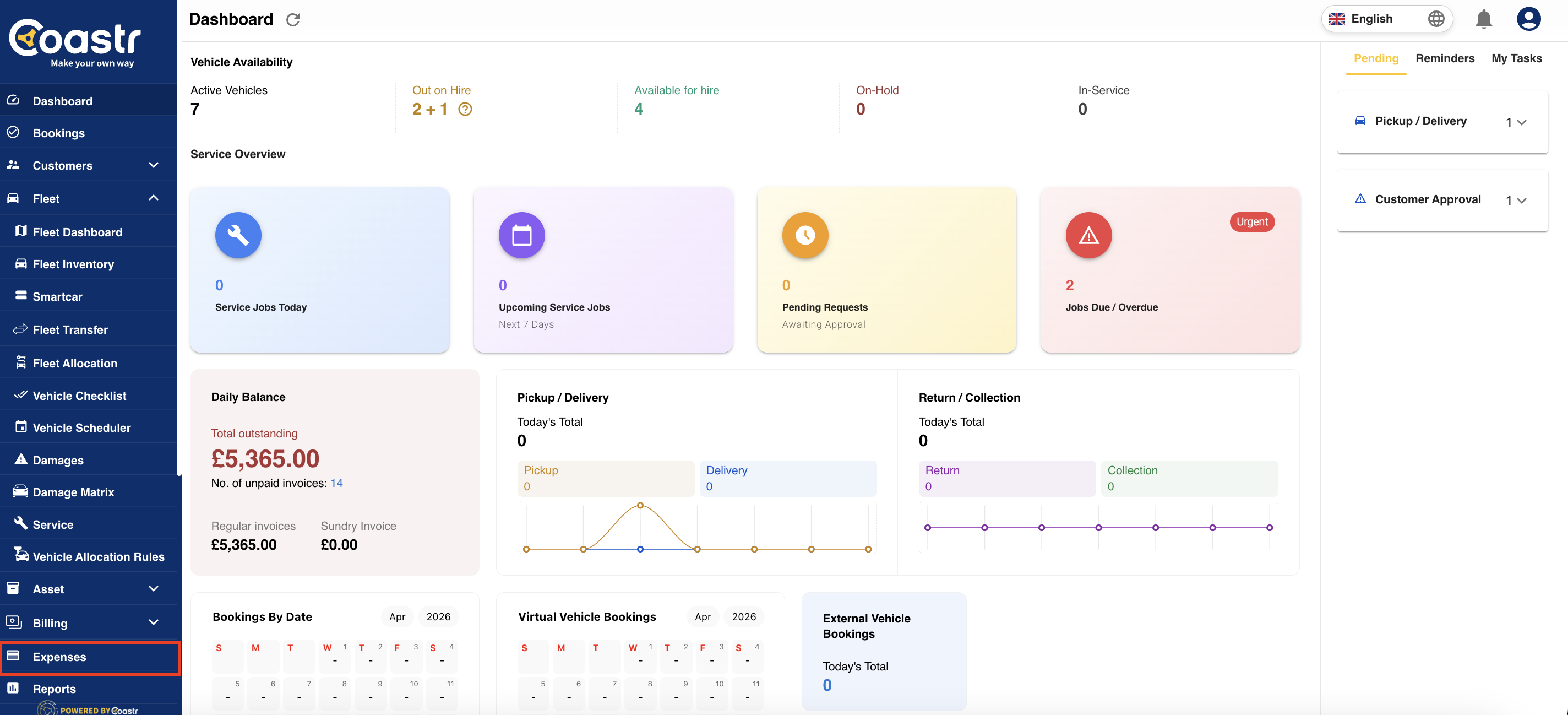
1. Go to the **Expenses** tab from the left-hand navigation pane in the Car and Van Rental Software.
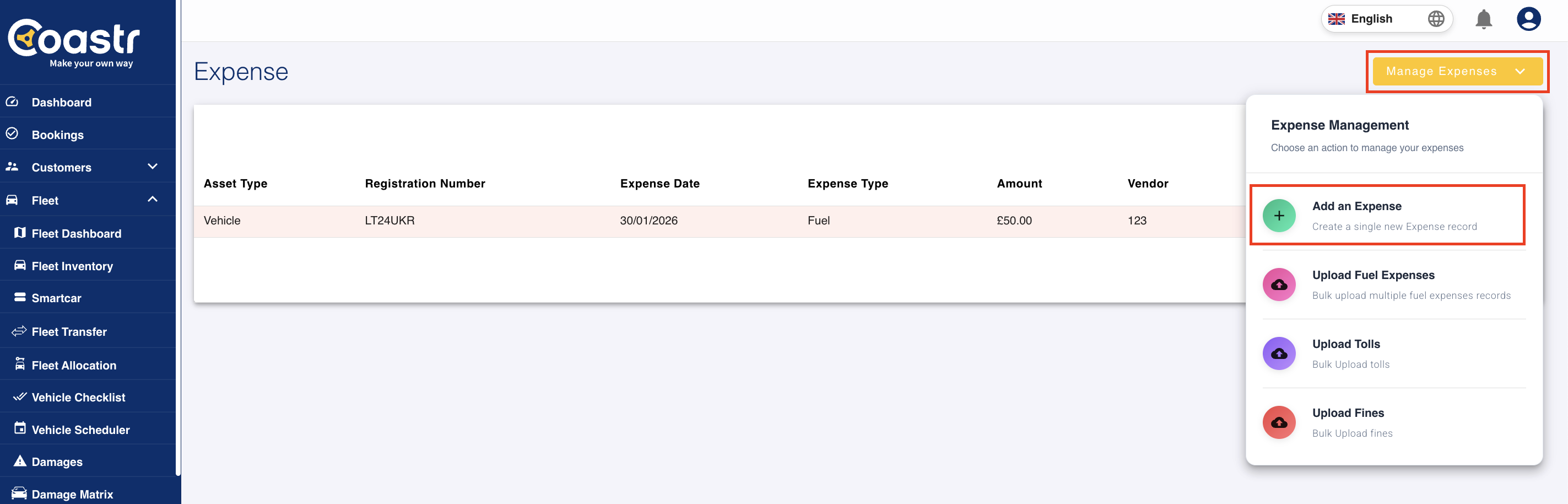
2. Click on **Manage Expense** and select **Add New Expense** from the dropdown
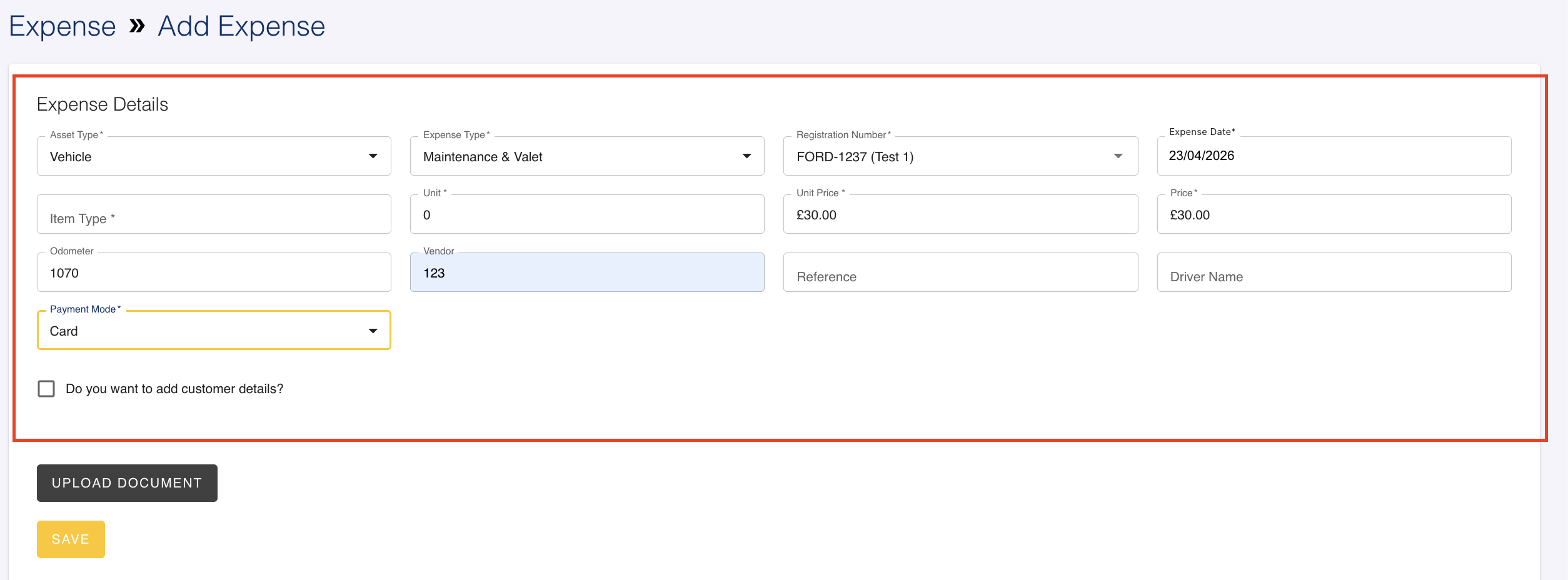
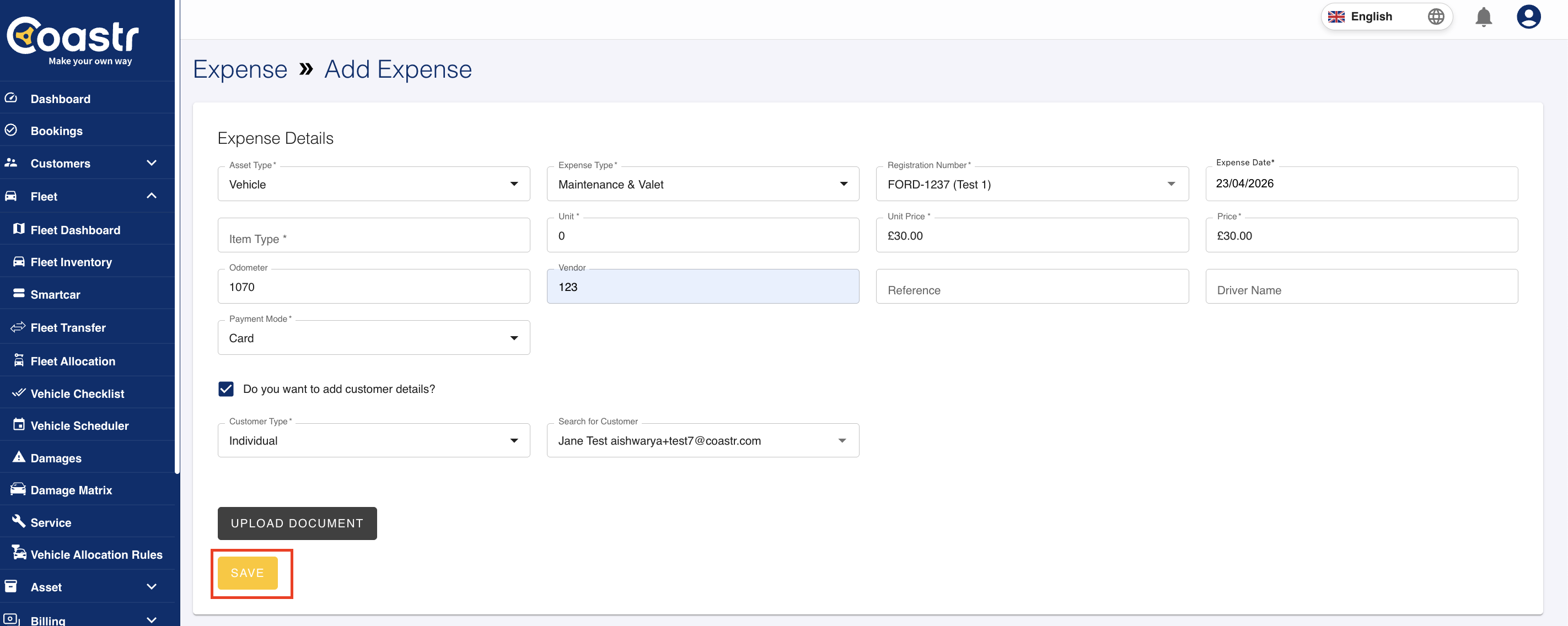
3. Select the asset type as **Vehicle/Addon**.
4. Search for or select the vehicle by entering its registration number.
5. Enter the date of the expense.
6. From the expense type dropdown menu, choose the appropriate expense type.
7. Enter the additional details required as per your expense type.
8. If needed, add optional information such as the fuel card number, driver details, and upload any supporting documents like receipts.
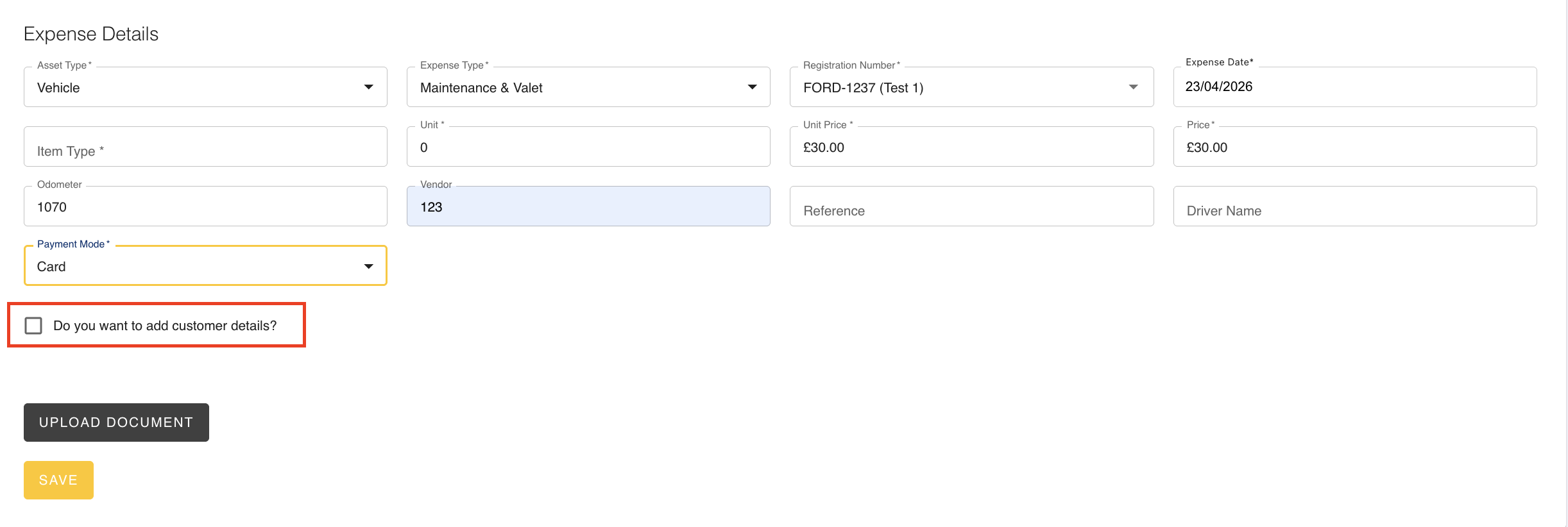
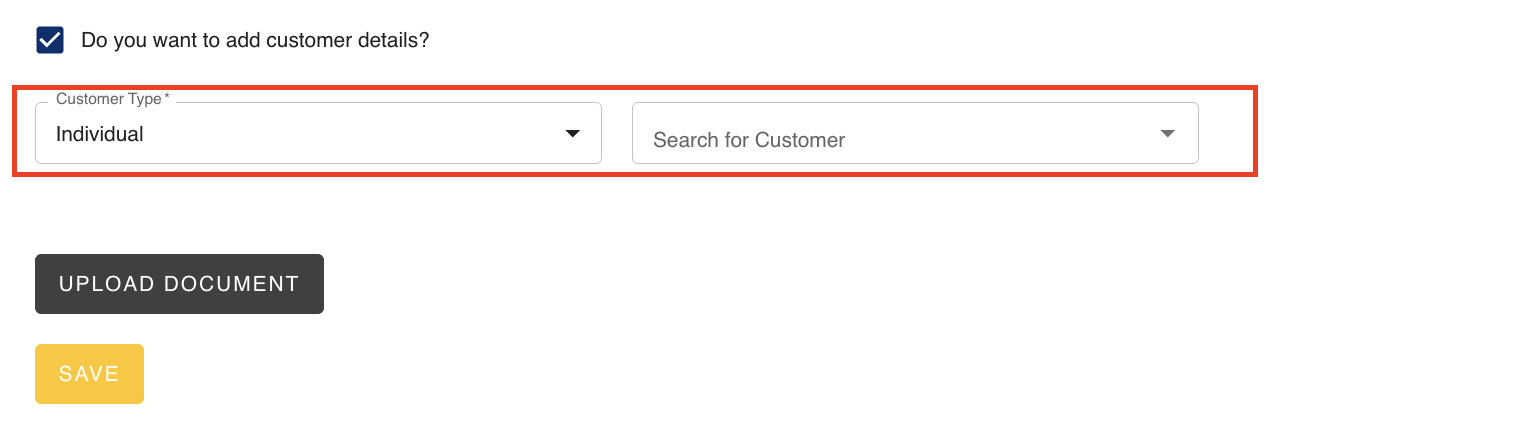
9. Select the checkbox labeled **“Do you want to add customer details?”**.
10. Choose the customer type, either **Individual** or **Business**.
11. Search for the customer by name in the **Search for Customer** field and select the correct record.
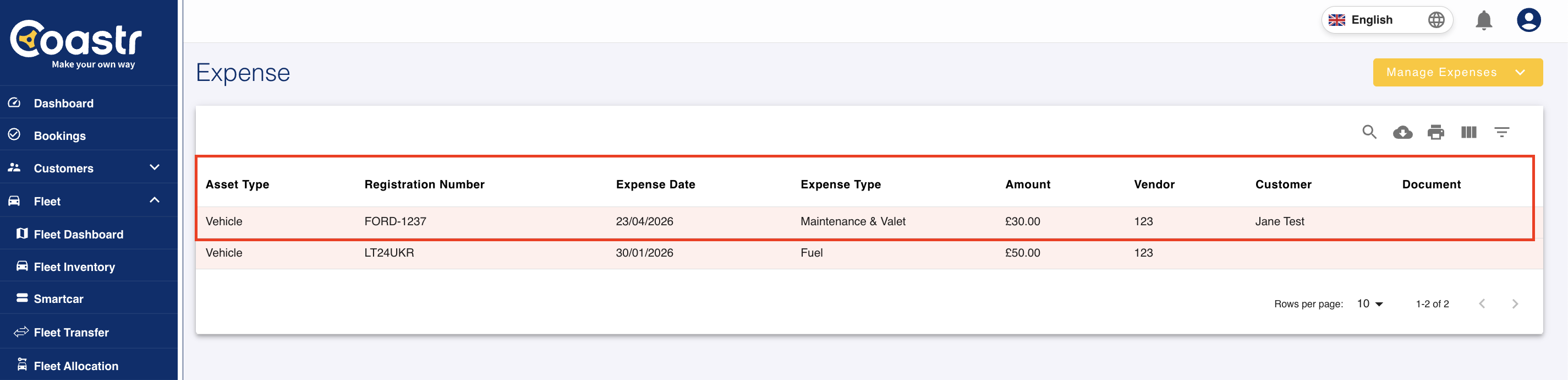
12. Click **Save** to store the expense. The fuel expense will be successfully recorded and linked to the selected customer.
- [How to guides](https://help.coastr.com/knowledge/how-to-guides?hsLang=en#main-content)
- [Bookings](https://help.coastr.com/knowledge/how-to-guides?hsLang=en#bookings)
- [Customers](https://help.coastr.com/knowledge/how-to-guides?hsLang=en#customers)
- [Fleet](https://help.coastr.com/knowledge/how-to-guides?hsLang=en#fleet)
- [Telematics & Immobilsation](https://help.coastr.com/knowledge/how-to-guides?hsLang=en#telematics-immobilsation)
- [Vehicle Scheduler](https://help.coastr.com/knowledge/how-to-guides?hsLang=en#vehicle-scheduler)
- [Damages, Service and Repairs](https://help.coastr.com/knowledge/how-to-guides?hsLang=en#damages-service-and-repairs)
- [Billing and Invoices](https://help.coastr.com/knowledge/how-to-guides?hsLang=en#billing-and-invoices)
- [Reports](https://help.coastr.com/knowledge/how-to-guides?hsLang=en#reports)
- [Websites](https://help.coastr.com/knowledge/how-to-guides?hsLang=en#websites)
- [Settings](https://help.coastr.com/knowledge/how-to-guides?hsLang=en#settings)
- [Coastr for Partners Mobile App](https://help.coastr.com/knowledge/how-to-guides?hsLang=en#coastr-for-partners-mobile-app)
- [Troubleshooting](https://help.coastr.com/knowledge/how-to-guides?hsLang=en#troubleshooting)
- [Pricing](https://help.coastr.com/knowledge/how-to-guides?hsLang=en#pricing)
- [Rental Agreement](https://help.coastr.com/knowledge/how-to-guides?hsLang=en#rental-agreement)
- [Dashboard](https://help.coastr.com/knowledge/how-to-guides?hsLang=en#dashboard)
- [Notifications](https://help.coastr.com/knowledge/how-to-guides?hsLang=en#notifications)
- [Vehicle Subscription](https://help.coastr.com/knowledge/how-to-guides?hsLang=en#vehicle-subscription)
- [Expenses](https://help.coastr.com/knowledge/how-to-guides?hsLang=en#expenses)
- [Asset](https://help.coastr.com/knowledge/how-to-guides?hsLang=en#asset)
- [Task Manager](https://help.coastr.com/knowledge/how-to-guides?hsLang=en#task-manager)
- [Service](https://help.coastr.com/knowledge/how-to-guides?hsLang=en#service)
- [3rd Party Integrations](https://help.coastr.com/knowledge/3rd-party-integrations?hsLang=en#main-content)
- [SAGE Business Cloud](https://help.coastr.com/knowledge/3rd-party-integrations?hsLang=en#sage-business-cloud)
- [XERO Integration](https://help.coastr.com/knowledge/3rd-party-integrations?hsLang=en#xero-integration)
- [STRIPE Payment Gateway](https://help.coastr.com/knowledge/3rd-party-integrations?hsLang=en#stripe-payment-gateway)
- [Elavon/Converge](https://help.coastr.com/knowledge/3rd-party-integrations?hsLang=en#elavon-converge)
- [Smartcar](https://help.coastr.com/knowledge/3rd-party-integrations?hsLang=en#smartcar)
- [FAQs](https://help.coastr.com/knowledge/faqs?hsLang=en#main-content)
- [Billing](https://help.coastr.com/knowledge/faqs?hsLang=en#billing)
- [Customer Support](https://help.coastr.com/knowledge/faqs?hsLang=en#customer-support)
- [Videos](https://help.coastr.com/knowledge/videos?hsLang=en#main-content)
- [Fleet](https://help.coastr.com/knowledge/videos?hsLang=en#fleet)
- [Support](https://help.coastr.com/knowledge/videos?hsLang=en#support)
- [Monthly Product updates](https://help.coastr.com/knowledge/monthly-product-updates?hsLang=en)
- [Menu](https://www.coastr.com/)
[-2.png?width=97&height=55&name=Untitled%20design%20(29)-2.png "Chill listening crop-3")](https://www.coastr.com)
Copyright © 2026, Coastr