---
title: How to create a damage for an asset?
description: You can now add and manage the damages for asset on Coastr.
---
[Skip to content](https://help.coastr.com/knowledge/how-to-create-a-damage-for-an-asset#main-content)
English
Show submenu for translations
![Untitled design (29)-1.png\]](https://help.coastr.com/hs-fs/hubfs/Untitled%20design%20(29)-1.png?height=40&name=Untitled%20design%20(29)-1.png)
- [Menu](https://www.coastr.com/)
Open main navigation
Close main navigation
- [Menu](https://www.coastr.com/)
- English
Show submenu for translations
Welcome to the Coastr Help Centre!
- There are no suggestions because the search field is empty.
1. [Coastr Help Centre](https://help.coastr.com/knowledge?hsLang=en)
2. [How to guides](https://help.coastr.com/knowledge/how-to-guides?hsLang=en)
3. [Asset](https://help.coastr.com/knowledge/how-to-guides?hsLang=en#asset)
# How to create a damage for an asset?
## You can now add and manage the damages for asset on Coastr.
Here’s how a Damage is added for an asset:
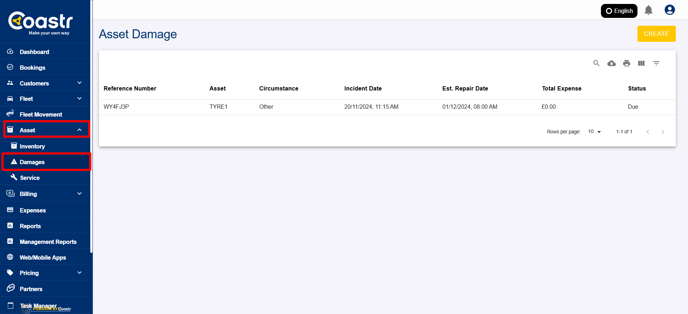
Step 1: Go to Asset tab and click 'damages' section on the Car and Van Rental Software.
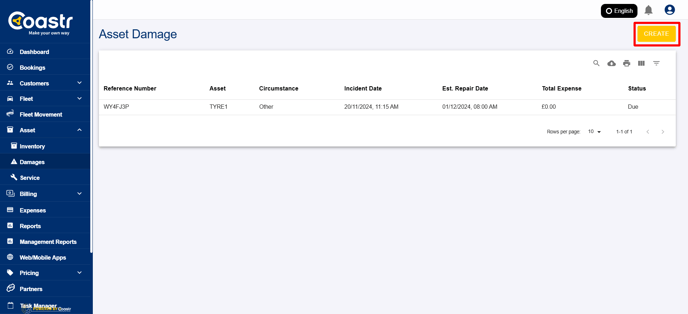
Step 2: Click on 'Create' to add a new damage.
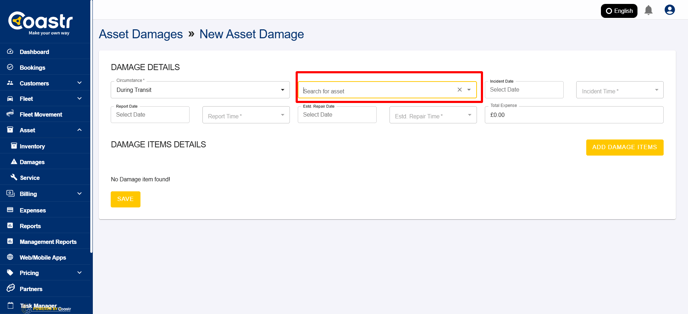
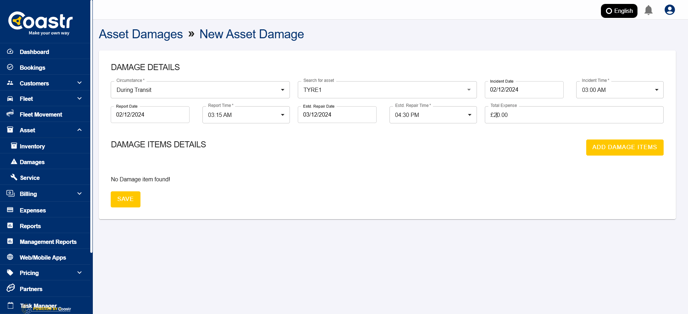
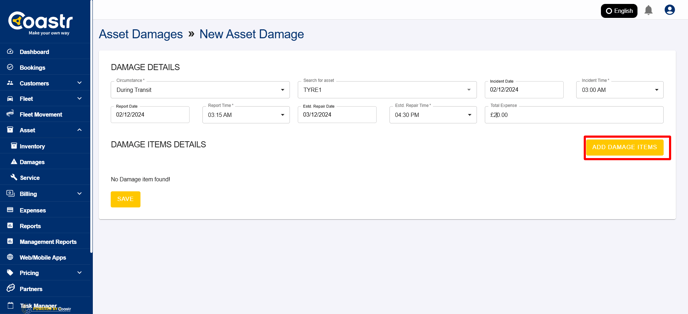
Step 3: Enter the circumstance of the damage, search for the asset associated with the damage, enter the incident date/time, report date/time, estimated report date/time and total expenses.
Step 4: To add damage items, click on 'Add damage items'.
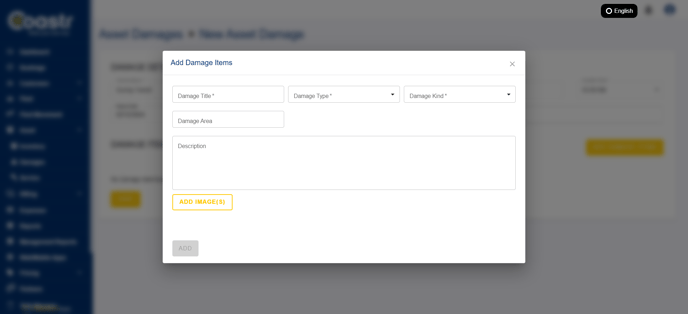
Step 5: Enter damage title, type, kind, area, and add upto 10 images of the damage.
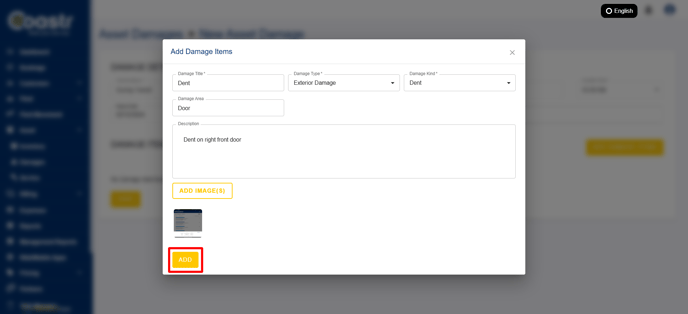
Step 6: Once the images are added/uploaded, click on 'Add' to save the damage items.
Step 7: You can view that the damages are successfully added.
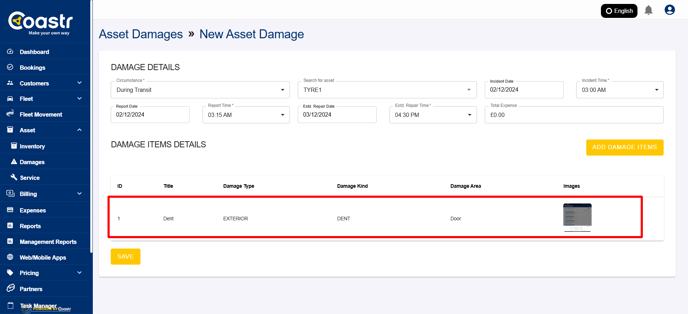
Step 8: You can add additional damage items, if you want to add multiple by again clicking on 'Add Damage Items'
Step 9: Click 'Save' to record the damage against the asset.

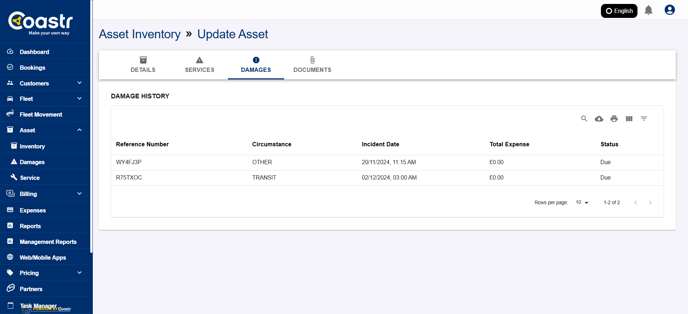
That's it! You have successfully added the damage for an asset. You can view the damages, in the asset inventory 'Damages' tab.
If you've any questions or issues, please email support@coastr.com. We're happy to help!
If you found this article useful then please vote below, it helps us massively. Thank you!
- [How to guides](https://help.coastr.com/knowledge/how-to-guides?hsLang=en#main-content)
- [Bookings](https://help.coastr.com/knowledge/how-to-guides?hsLang=en#bookings)
- [Customers](https://help.coastr.com/knowledge/how-to-guides?hsLang=en#customers)
- [Fleet](https://help.coastr.com/knowledge/how-to-guides?hsLang=en#fleet)
- [Telematics & Immobilsation](https://help.coastr.com/knowledge/how-to-guides?hsLang=en#telematics-immobilsation)
- [Vehicle Scheduler](https://help.coastr.com/knowledge/how-to-guides?hsLang=en#vehicle-scheduler)
- [Damages, Service and Repairs](https://help.coastr.com/knowledge/how-to-guides?hsLang=en#damages-service-and-repairs)
- [Billing and Invoices](https://help.coastr.com/knowledge/how-to-guides?hsLang=en#billing-and-invoices)
- [Reports](https://help.coastr.com/knowledge/how-to-guides?hsLang=en#reports)
- [Websites](https://help.coastr.com/knowledge/how-to-guides?hsLang=en#websites)
- [Settings](https://help.coastr.com/knowledge/how-to-guides?hsLang=en#settings)
- [Coastr for Partners Mobile App](https://help.coastr.com/knowledge/how-to-guides?hsLang=en#coastr-for-partners-mobile-app)
- [Troubleshooting](https://help.coastr.com/knowledge/how-to-guides?hsLang=en#troubleshooting)
- [Pricing](https://help.coastr.com/knowledge/how-to-guides?hsLang=en#pricing)
- [Rental Agreement](https://help.coastr.com/knowledge/how-to-guides?hsLang=en#rental-agreement)
- [Dashboard](https://help.coastr.com/knowledge/how-to-guides?hsLang=en#dashboard)
- [Notifications](https://help.coastr.com/knowledge/how-to-guides?hsLang=en#notifications)
- [Vehicle Subscription](https://help.coastr.com/knowledge/how-to-guides?hsLang=en#vehicle-subscription)
- [Expenses](https://help.coastr.com/knowledge/how-to-guides?hsLang=en#expenses)
- [Asset](https://help.coastr.com/knowledge/how-to-guides?hsLang=en#asset)
- [Task Manager](https://help.coastr.com/knowledge/how-to-guides?hsLang=en#task-manager)
- [Service](https://help.coastr.com/knowledge/how-to-guides?hsLang=en#service)
- [3rd Party Integrations](https://help.coastr.com/knowledge/3rd-party-integrations?hsLang=en#main-content)
- [SAGE Business Cloud](https://help.coastr.com/knowledge/3rd-party-integrations?hsLang=en#sage-business-cloud)
- [XERO Integration](https://help.coastr.com/knowledge/3rd-party-integrations?hsLang=en#xero-integration)
- [STRIPE Payment Gateway](https://help.coastr.com/knowledge/3rd-party-integrations?hsLang=en#stripe-payment-gateway)
- [Elavon/Converge](https://help.coastr.com/knowledge/3rd-party-integrations?hsLang=en#elavon-converge)
- [Smartcar](https://help.coastr.com/knowledge/3rd-party-integrations?hsLang=en#smartcar)
- [FAQs](https://help.coastr.com/knowledge/faqs?hsLang=en#main-content)
- [Billing](https://help.coastr.com/knowledge/faqs?hsLang=en#billing)
- [Customer Support](https://help.coastr.com/knowledge/faqs?hsLang=en#customer-support)
- [Videos](https://help.coastr.com/knowledge/videos?hsLang=en#main-content)
- [Fleet](https://help.coastr.com/knowledge/videos?hsLang=en#fleet)
- [Support](https://help.coastr.com/knowledge/videos?hsLang=en#support)
- [Monthly Product updates](https://help.coastr.com/knowledge/monthly-product-updates?hsLang=en)
- [Menu](https://www.coastr.com/)
[-2.png?width=97&height=55&name=Untitled%20design%20(29)-2.png "Chill listening crop-3")](https://www.coastr.com)
Copyright © 2026, Coastr