---
title: How to create a custom task checklist?
description: You can now create your own custom task checklist for specific tasks
---
[Skip to content](https://help.coastr.com/knowledge/how-to-create-a-custom-task-list#main-content)
English
Show submenu for translations
![Untitled design (29)-1.png\]](https://help.coastr.com/hs-fs/hubfs/Untitled%20design%20(29)-1.png?height=40&name=Untitled%20design%20(29)-1.png)
- [Menu](https://www.coastr.com/)
Open main navigation
Close main navigation
- [Menu](https://www.coastr.com/)
- English
Show submenu for translations
Welcome to the Coastr Help Centre!
- There are no suggestions because the search field is empty.
1. [Coastr Help Centre](https://help.coastr.com/knowledge?hsLang=en)
2. [How to guides](https://help.coastr.com/knowledge/how-to-guides?hsLang=en)
3. [Task Manager](https://help.coastr.com/knowledge/how-to-guides?hsLang=en#task-manager)
# How to create a custom task checklist?
## You can now create your own custom task checklist for specific tasks
When a task is assigned to a user, you can now add a checklist in the system. This ensures that only the selected checklist items are visible when the task is opened, streamlining the process and improving task clarity for your team.
Follow the steps below to set this up on the Coastr Web App.
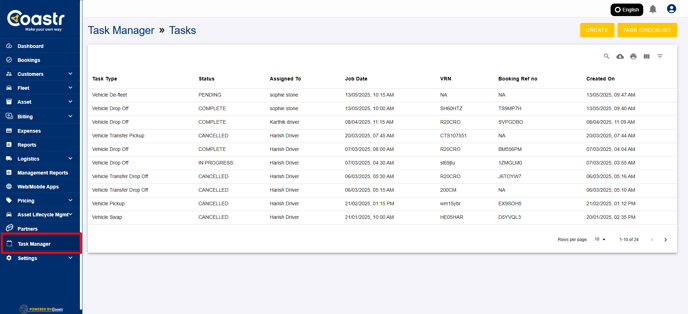
Step 1: Click on Task Manager located on the left-hand navigation bar within the Car and Van Rental Software.
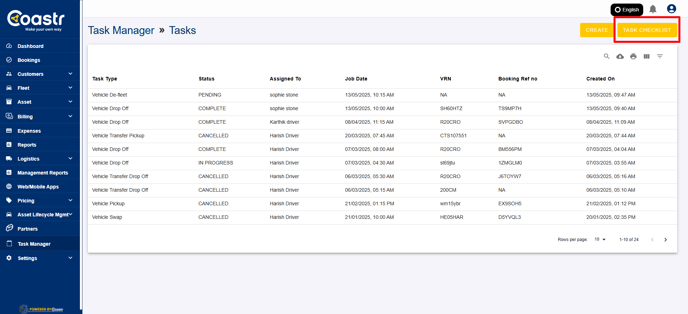
Step 2: In the Task Manager view, click on Task Checklist, which you'll find at the top right corner of the page.
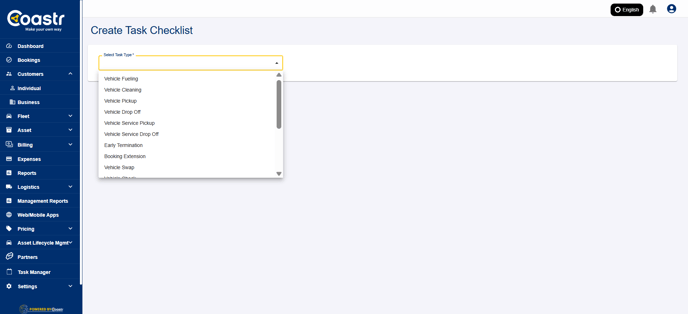
Step 3: Select the task type from the dropdown list for which you want to create or edit a checklist.
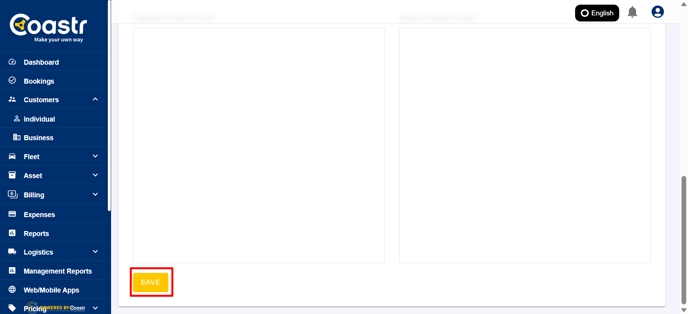
Step 4: Once the task type is selected, the system will provide a list of suggested checks. From this list, choose the checks relevant to your task. After making your selections, click 'Save' to update the checklist for that task.

Step 5: The next time a task, such as 'Vehicle Cleaning', is assigned, only the saved checklist items—such as interior, exterior, odometer reading—will be shown to the operator.
**Mobile App:**
Open a task, to view the checklist items present.
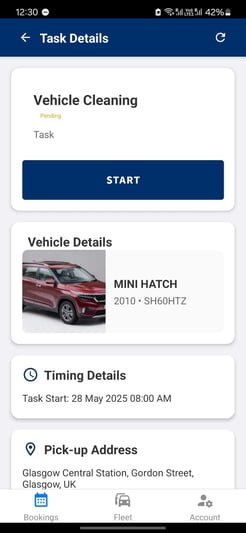
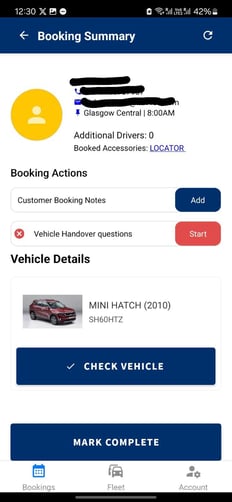
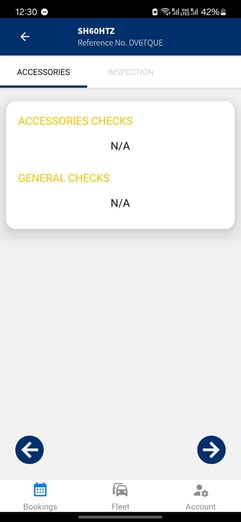
That’s it! You’ve successfully set up a customized checklist.
If you have any questions or run into issues, please email us at support@coastr.com. We’re here to help!
Found this article helpful? Please vote below—your feedback means a lot to us. Thank you!
- [How to guides](https://help.coastr.com/knowledge/how-to-guides?hsLang=en#main-content)
- [Bookings](https://help.coastr.com/knowledge/how-to-guides?hsLang=en#bookings)
- [Customers](https://help.coastr.com/knowledge/how-to-guides?hsLang=en#customers)
- [Fleet](https://help.coastr.com/knowledge/how-to-guides?hsLang=en#fleet)
- [Telematics & Immobilsation](https://help.coastr.com/knowledge/how-to-guides?hsLang=en#telematics-immobilsation)
- [Vehicle Scheduler](https://help.coastr.com/knowledge/how-to-guides?hsLang=en#vehicle-scheduler)
- [Damages, Service and Repairs](https://help.coastr.com/knowledge/how-to-guides?hsLang=en#damages-service-and-repairs)
- [Billing and Invoices](https://help.coastr.com/knowledge/how-to-guides?hsLang=en#billing-and-invoices)
- [Reports](https://help.coastr.com/knowledge/how-to-guides?hsLang=en#reports)
- [Websites](https://help.coastr.com/knowledge/how-to-guides?hsLang=en#websites)
- [Settings](https://help.coastr.com/knowledge/how-to-guides?hsLang=en#settings)
- [Coastr for Partners Mobile App](https://help.coastr.com/knowledge/how-to-guides?hsLang=en#coastr-for-partners-mobile-app)
- [Troubleshooting](https://help.coastr.com/knowledge/how-to-guides?hsLang=en#troubleshooting)
- [Pricing](https://help.coastr.com/knowledge/how-to-guides?hsLang=en#pricing)
- [Rental Agreement](https://help.coastr.com/knowledge/how-to-guides?hsLang=en#rental-agreement)
- [Dashboard](https://help.coastr.com/knowledge/how-to-guides?hsLang=en#dashboard)
- [Notifications](https://help.coastr.com/knowledge/how-to-guides?hsLang=en#notifications)
- [Vehicle Subscription](https://help.coastr.com/knowledge/how-to-guides?hsLang=en#vehicle-subscription)
- [Expenses](https://help.coastr.com/knowledge/how-to-guides?hsLang=en#expenses)
- [Asset](https://help.coastr.com/knowledge/how-to-guides?hsLang=en#asset)
- [Task Manager](https://help.coastr.com/knowledge/how-to-guides?hsLang=en#task-manager)
- [Service](https://help.coastr.com/knowledge/how-to-guides?hsLang=en#service)
- [3rd Party Integrations](https://help.coastr.com/knowledge/3rd-party-integrations?hsLang=en#main-content)
- [SAGE Business Cloud](https://help.coastr.com/knowledge/3rd-party-integrations?hsLang=en#sage-business-cloud)
- [XERO Integration](https://help.coastr.com/knowledge/3rd-party-integrations?hsLang=en#xero-integration)
- [STRIPE Payment Gateway](https://help.coastr.com/knowledge/3rd-party-integrations?hsLang=en#stripe-payment-gateway)
- [Elavon/Converge](https://help.coastr.com/knowledge/3rd-party-integrations?hsLang=en#elavon-converge)
- [Smartcar](https://help.coastr.com/knowledge/3rd-party-integrations?hsLang=en#smartcar)
- [FAQs](https://help.coastr.com/knowledge/faqs?hsLang=en#main-content)
- [Billing](https://help.coastr.com/knowledge/faqs?hsLang=en#billing)
- [Customer Support](https://help.coastr.com/knowledge/faqs?hsLang=en#customer-support)
- [Videos](https://help.coastr.com/knowledge/videos?hsLang=en#main-content)
- [Fleet](https://help.coastr.com/knowledge/videos?hsLang=en#fleet)
- [Support](https://help.coastr.com/knowledge/videos?hsLang=en#support)
- [Monthly Product updates](https://help.coastr.com/knowledge/monthly-product-updates?hsLang=en)
- [Menu](https://www.coastr.com/)
[-2.png?width=97&height=55&name=Untitled%20design%20(29)-2.png "Chill listening crop-3")](https://www.coastr.com)
Copyright © 2026, Coastr