![Untitled design (29)-1.png]](https://help.coastr.com/hs-fs/hubfs/Untitled%20design%20(29)-1.png?height=40&name=Untitled%20design%20(29)-1.png)
In case you entered the incorrect mileage during check-in or check-out, you can now easily correct it using the web app. Please follow the steps outlined below to make the necessary changes:
Step 1: Navigate to the Fleet section and select Fleet Inventory on the Car and Van Rental Software platform. This will display a list of all vehicles currently in your system.
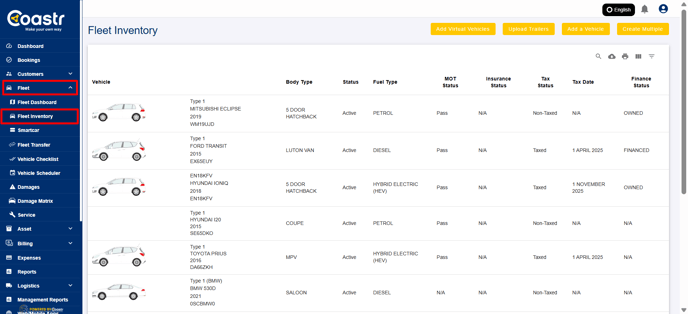
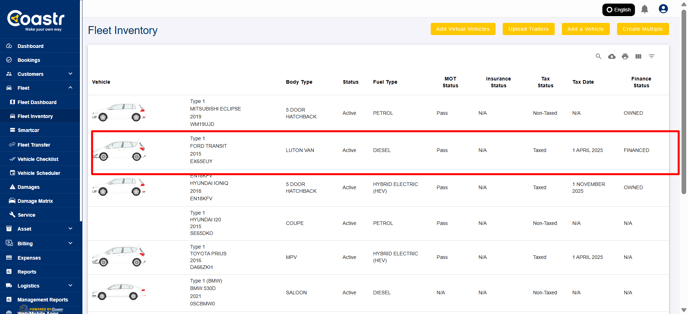
Step 2: Use the search function to locate the specific vehicle for which you need to correct the mileage information. You can search using the vehicle registration number or other identifying details.
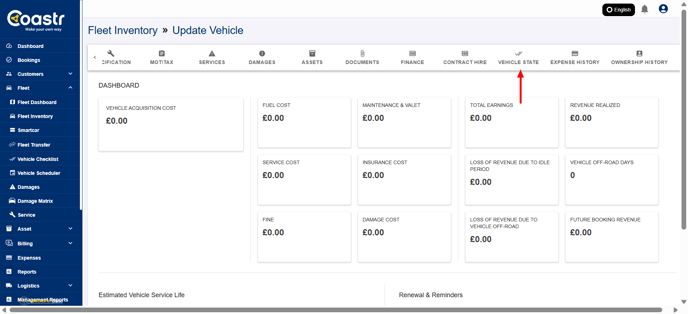
Step 3: Click on the Vehicle State tab to view the most recently updated information about the vehicle, including mileage and condition.
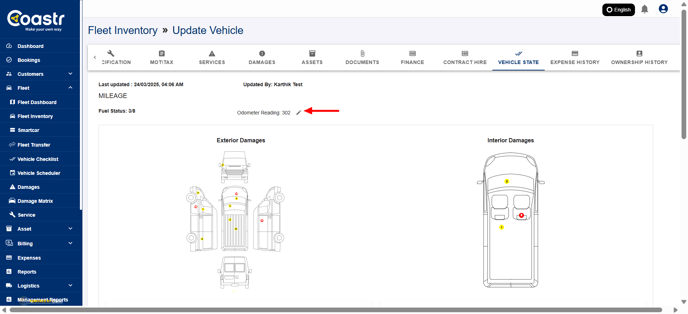
Step 4: Click the edit icon (a pencil symbol) located next to the Odometer Reading. This will enable you to manually update the mileage. Additionally, you have to upload a clear image of the odometer for verification purposes.
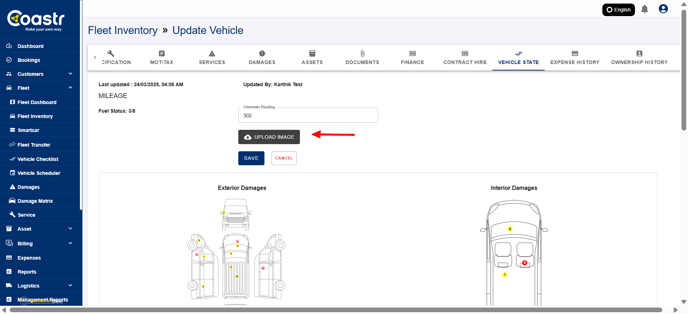
Step 5: After updating the odometer reading, click 'Save' to confirm and apply the changes.
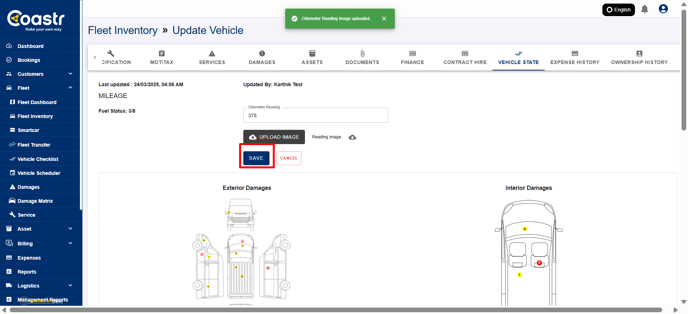
That’s it! You’ve successfully corrected the odometer reading for the selected vehicle.
If you have any questions or encounter any issues, please email us at support@coastr.com. Our dedicated support team is here to help.
If you found this article helpful, please vote below—it really helps us improve!