---
title: How to apply a discount to a draft invoice?
description: You can apply a discount on a draft invoice by following the detailed steps outlined below.
---
[Skip to content](https://help.coastr.com/knowledge/how-to-apply-a-discount-to-a-draft-invoice#main-content)
English
Show submenu for translations
![Untitled design (29)-1.png\]](https://help.coastr.com/hs-fs/hubfs/Untitled%20design%20(29)-1.png?height=40&name=Untitled%20design%20(29)-1.png)
- [Menu](https://www.coastr.com/)
Open main navigation
Close main navigation
- [Menu](https://www.coastr.com/)
- English
Show submenu for translations
Welcome to the Coastr Help Centre!
- There are no suggestions because the search field is empty.
1. [Coastr Help Centre](https://help.coastr.com/knowledge?hsLang=en)
2. [How to guides](https://help.coastr.com/knowledge/how-to-guides?hsLang=en)
3. [Billing and Invoices](https://help.coastr.com/knowledge/how-to-guides?hsLang=en#billing-and-invoices)
# How to apply a discount to a draft invoice?
You can apply a discount on a draft invoice by following the detailed steps outlined below.
Please note: Discounts can only be added to invoices that are in draft status. If the invoice is already in any other status, such as Unpaid, Partially Paid, or Paid, then a discount cannot be applied.
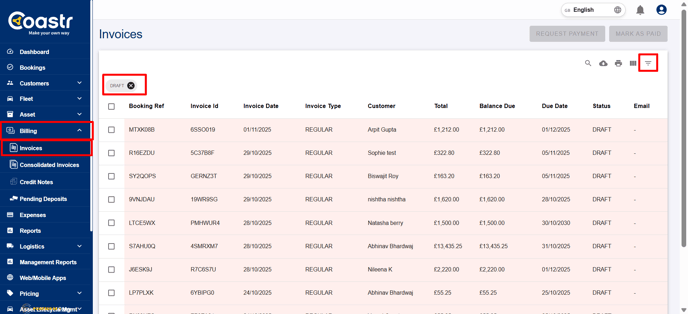
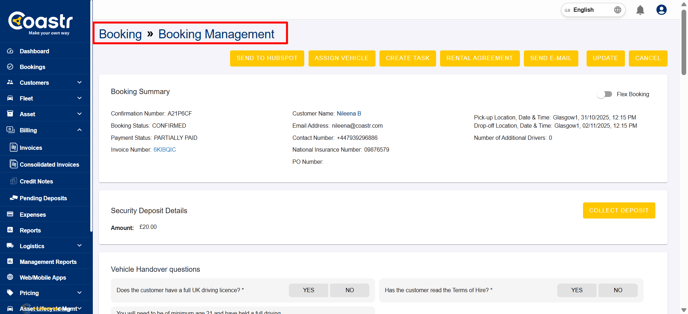
Step 1: Select a draft invoice. You can do this either from the Booking Management page or directly through the Billing section of the platform.
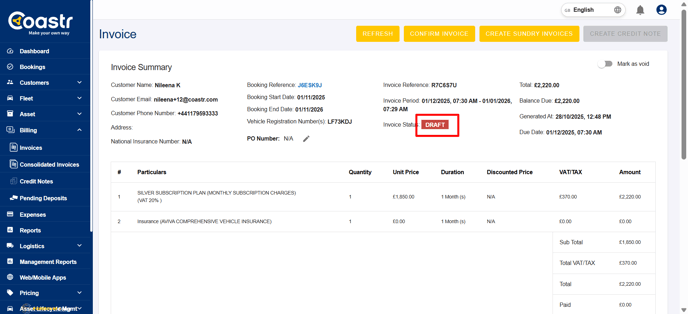
Step 2: Scroll down within the invoice page until you find the Discount tab.
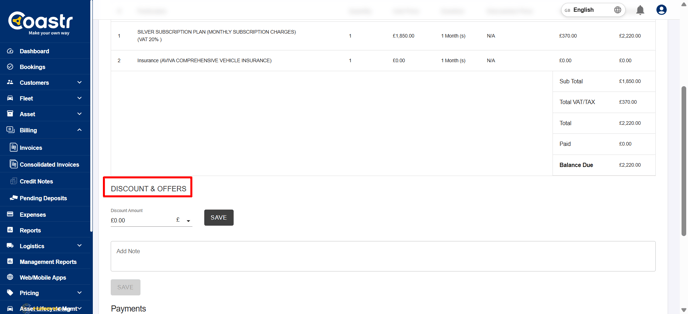
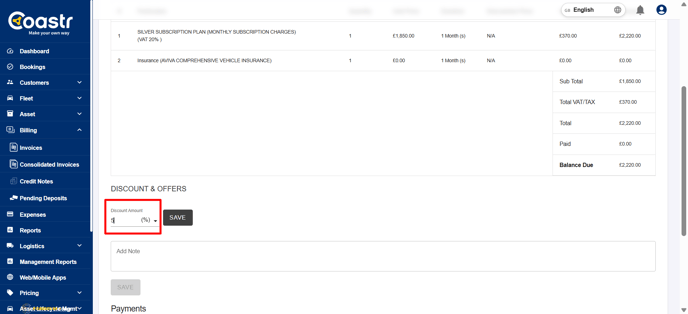
Step 3: In this section, you can input either a percentage value of the rental amount or enter a fixed discount amount as a discount. Choose whichever option fits your pricing needs.
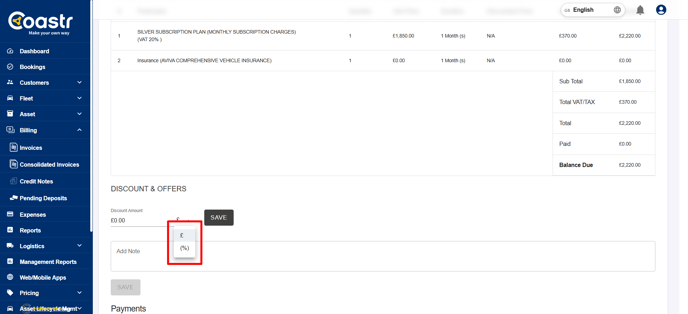
Step 4: After entering the discount details, click ‘Save’ to confirm your changes.
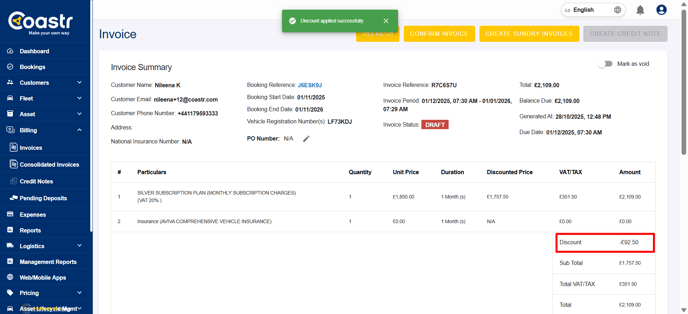
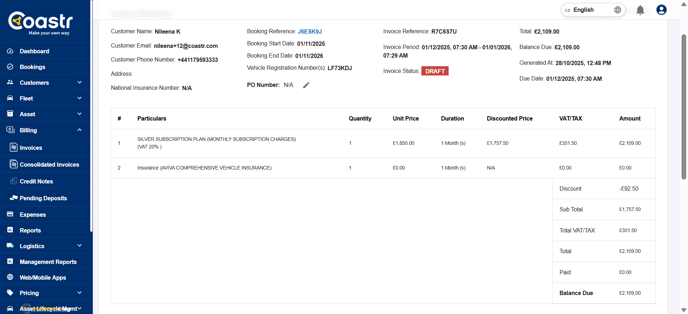
Step 5: The discount is now be successfully applied to the draft invoice. Once the invoice is confirmed and sent to the customer, the discount will be automatically reflected in the final total amount.
If you have questions or face any issues, please email support@coastr.com
—our team is happy to help.
If this article was helpful, please vote below. Your feedback supports us greatly. Thank you!
- [How to guides](https://help.coastr.com/knowledge/how-to-guides?hsLang=en#main-content)
- [Bookings](https://help.coastr.com/knowledge/how-to-guides?hsLang=en#bookings)
- [Customers](https://help.coastr.com/knowledge/how-to-guides?hsLang=en#customers)
- [Fleet](https://help.coastr.com/knowledge/how-to-guides?hsLang=en#fleet)
- [Telematics & Immobilsation](https://help.coastr.com/knowledge/how-to-guides?hsLang=en#telematics-immobilsation)
- [Vehicle Scheduler](https://help.coastr.com/knowledge/how-to-guides?hsLang=en#vehicle-scheduler)
- [Damages, Service and Repairs](https://help.coastr.com/knowledge/how-to-guides?hsLang=en#damages-service-and-repairs)
- [Billing and Invoices](https://help.coastr.com/knowledge/how-to-guides?hsLang=en#billing-and-invoices)
- [Reports](https://help.coastr.com/knowledge/how-to-guides?hsLang=en#reports)
- [Websites](https://help.coastr.com/knowledge/how-to-guides?hsLang=en#websites)
- [Settings](https://help.coastr.com/knowledge/how-to-guides?hsLang=en#settings)
- [Coastr for Partners Mobile App](https://help.coastr.com/knowledge/how-to-guides?hsLang=en#coastr-for-partners-mobile-app)
- [Troubleshooting](https://help.coastr.com/knowledge/how-to-guides?hsLang=en#troubleshooting)
- [Pricing](https://help.coastr.com/knowledge/how-to-guides?hsLang=en#pricing)
- [Rental Agreement](https://help.coastr.com/knowledge/how-to-guides?hsLang=en#rental-agreement)
- [Dashboard](https://help.coastr.com/knowledge/how-to-guides?hsLang=en#dashboard)
- [Notifications](https://help.coastr.com/knowledge/how-to-guides?hsLang=en#notifications)
- [Vehicle Subscription](https://help.coastr.com/knowledge/how-to-guides?hsLang=en#vehicle-subscription)
- [Expenses](https://help.coastr.com/knowledge/how-to-guides?hsLang=en#expenses)
- [Asset](https://help.coastr.com/knowledge/how-to-guides?hsLang=en#asset)
- [Task Manager](https://help.coastr.com/knowledge/how-to-guides?hsLang=en#task-manager)
- [Service](https://help.coastr.com/knowledge/how-to-guides?hsLang=en#service)
- [3rd Party Integrations](https://help.coastr.com/knowledge/3rd-party-integrations?hsLang=en#main-content)
- [SAGE Business Cloud](https://help.coastr.com/knowledge/3rd-party-integrations?hsLang=en#sage-business-cloud)
- [XERO Integration](https://help.coastr.com/knowledge/3rd-party-integrations?hsLang=en#xero-integration)
- [STRIPE Payment Gateway](https://help.coastr.com/knowledge/3rd-party-integrations?hsLang=en#stripe-payment-gateway)
- [Elavon/Converge](https://help.coastr.com/knowledge/3rd-party-integrations?hsLang=en#elavon-converge)
- [Smartcar](https://help.coastr.com/knowledge/3rd-party-integrations?hsLang=en#smartcar)
- [FAQs](https://help.coastr.com/knowledge/faqs?hsLang=en#main-content)
- [Billing](https://help.coastr.com/knowledge/faqs?hsLang=en#billing)
- [Customer Support](https://help.coastr.com/knowledge/faqs?hsLang=en#customer-support)
- [Videos](https://help.coastr.com/knowledge/videos?hsLang=en#main-content)
- [Fleet](https://help.coastr.com/knowledge/videos?hsLang=en#fleet)
- [Support](https://help.coastr.com/knowledge/videos?hsLang=en#support)
- [Monthly Product updates](https://help.coastr.com/knowledge/monthly-product-updates?hsLang=en)
- [Menu](https://www.coastr.com/)
[-2.png?width=97&height=55&name=Untitled%20design%20(29)-2.png "Chill listening crop-3")](https://www.coastr.com)
Copyright © 2026, Coastr