![Untitled design (29)-1.png]](https://help.coastr.com/hs-fs/hubfs/Untitled%20design%20(29)-1.png?height=40&name=Untitled%20design%20(29)-1.png)
Applying a discount to a quote in the Car and Van Hire Software is a quick and simple process. Follow the steps below to apply either a fixed discount or a percentage-based discount to any quote.
Step 1: Open the quote that you would like to apply a discount to. You can do this by navigating to the Bookings section in the software and selecting the specific quote you wish to edit.
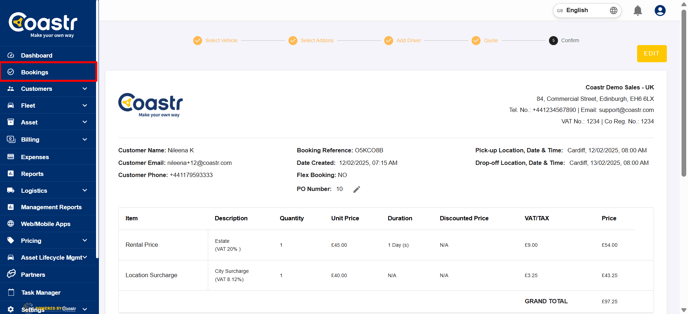
Step 2: Scroll down to the bottom left-hand side of the quote screen. There, you’ll find the Discount tab.
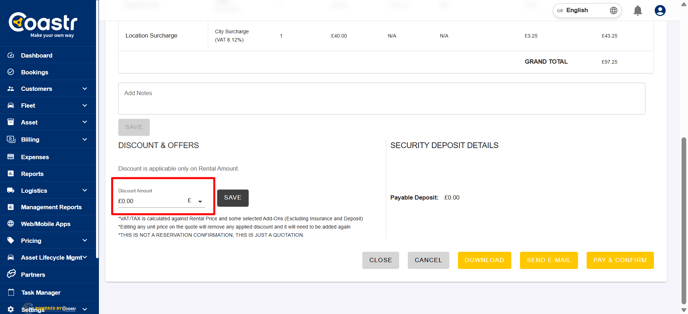
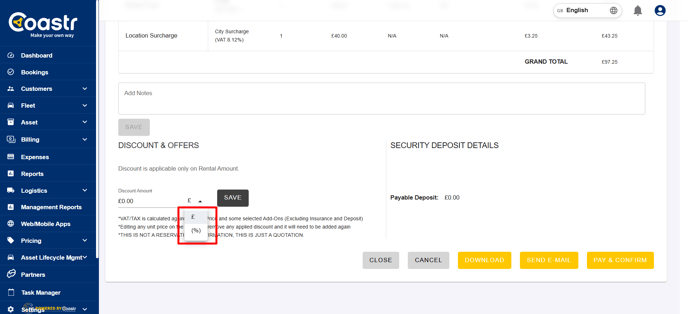
Step 3: You will now have the option to apply a discount in one of two ways:
-
Enter a fixed amount (e.g., £25)
-
Enter a percentage (e.g., 10%)
Choose the one that best suits your needs.
Step 4: After selecting the desired discount type and entering the value, click the Save button to confirm your changes.
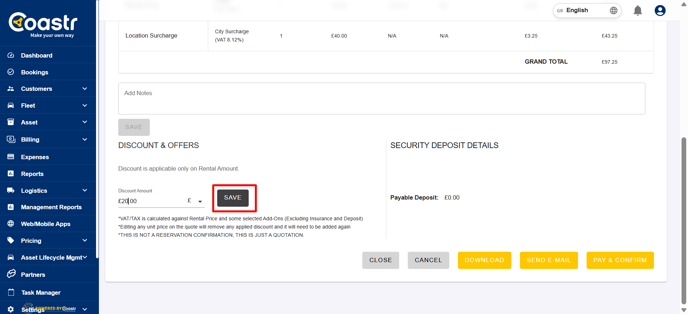
Step 5: The discount will now be automatically applied to the total amount of the quote. It will also be clearly displayed on the quote summary.
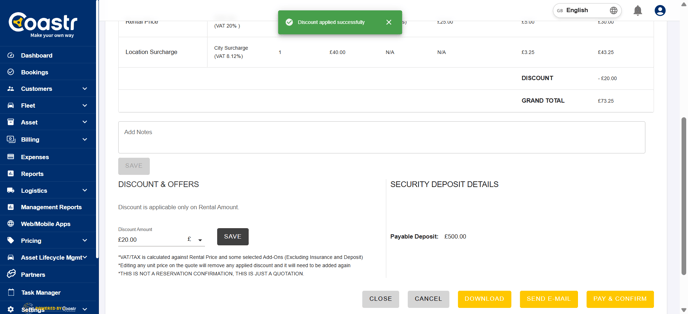
That’s it! You've now successfully added a discount to the quote.
If you've any questions or issues, please email support@coastr.com. We're happy to help!
If you found this article useful then please vote below, it helps us massively. Thank you!